


Summary:
The Nintendo Switch 2 HOME Menu is more than a launch screen—it’s the beating heart of the console. This overview walks you through every major icon, option, and hidden trick so you can jump into games, tweak settings, chat with friends, and fine-tune accessibility features with confidence. We’ll look at GameChat, the revamped Nintendo eShop, profile management, and customization tools, all wrapped in a conversational style that keeps things lively. Whether you’re brand-new to Nintendo hardware or upgrading from the original Switch, you’ll pick up practical tips for faster navigation, smarter parental controls, and personalized comfort settings. By the end, you’ll understand how each piece fits together, making the HOME Menu feel like second nature.
Welcome to Your New Console Hub
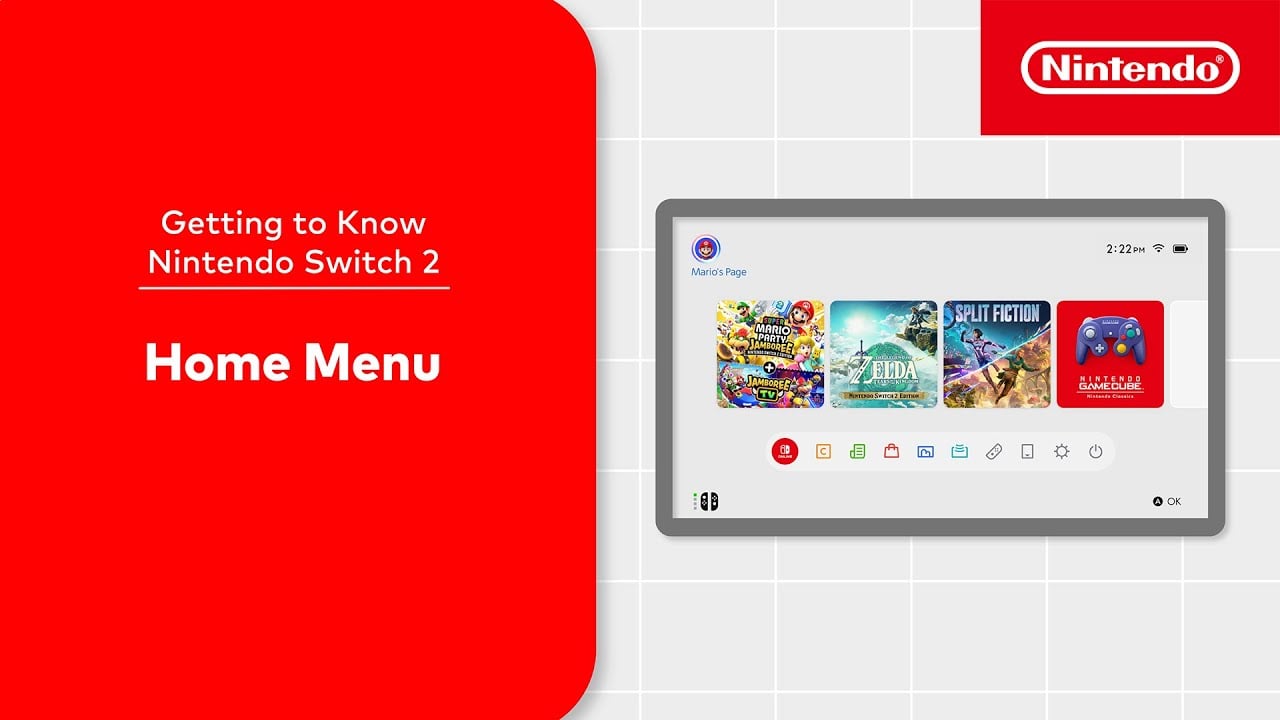
Fire up a fresh Nintendo Switch 2 and the first thing you see is the new HOME Menu—clean, bright, and quicker than a blue shell on lap three. Icons glide in with a subtle bounce, hinting at the snappier hardware under the hood. At the center of the layout sits a horizontal carousel showing your most-recent games, while a slim dock below houses core features like GameChat, Nintendo eShop, Album, Controllers, News, and Settings. Everything is reachable with a single Joy-Con flick or a tap of the touchscreen, making the interface welcoming whether you’re curled up in handheld mode or lounged on the couch with a Pro Controller. Nintendo’s goal was “pick-up-and-play” simplicity, and the HOME Menu nails it.

Seamless Navigation at a Glance
Navigation now feels like strolling through a well-lit arcade instead of hunting through a maze. The HOME Button transports you here from any game within two seconds, and the menu remembers your last highlight so you can hop straight back to it. Holding the Y Button brings up Quick Settings—no more digging through sub-menus just to adjust brightness or connect a new controller. You can even rearrange the order of your game icons: press the right stick, choose “Sort,” and line them up by play time, title, or most recent use. Think of it as alphabetizing a game shelf, minus the dusting.
GameChat: Staying Connected
Nintendo heard the complaints about voice chat apps and baked a dedicated GameChat icon right into the dock. Fire it up to start or join a room, text via USB keyboard, or let the new text-to-speech feature read messages aloud. For noisy surroundings, hit the on-screen mic toggle to mute until you’re ready to jump back in. With adjustable word-per-minute rates and uncensored speech-to-text, GameChat finally catches up to the competition, letting friends share strategies without juggling phones.
Safety and Reporting Tools
Voice chat on an open platform can get rowdy, so Nintendo added reporting and block options one tap away. If someone crosses the line, press the – Button, select their name, and file a report complete with auto-captured audio snippets. Parental Controls can also disable GameChat system-wide for younger users, ensuring peace of mind for guardians.
Nintendo eShop: Shop Without Stopping
The eShop loads markedly faster, displaying featured deals almost instantly. A new tab bar splits the store into Spotlight, Charts, DLC, and Demos. Filters along the left let you narrow by genre, price, multiplayer type, or accessibility tags such as caption support. Best of all, your payment details now auto-fill with Face ID-style Joy-Con infrared scanning—just hold your controller briefly for secure confirmation. Sneaking in a late-night purchase is easier than raiding a secret dungeon.
My Page & User Profiles
Locate your Mii-style avatar in the top-left corner to open My Page. Here you’ll track play hours, check friend requests, and set online status. The Activity Log now breaks sessions down by game, date, and time, which is handy when you swear you only played “one more round.” You can pin favorite friends for quick invites or group them into custom lists (think “Splatoon Squad” or “Family Fridays”).
Activity Log & Parental Controls
The revamped Activity Log features daily, weekly, and monthly views, plus a parental-control timeline. Guardians can set screen-time caps per child profile, schedule play “curfews,” and require a PIN to bypass limits. If limits are reached while a game is running, a subtle on-screen reminder pops up first; a full pause hits only after five extra minutes, sparing progress mid-boss fight. The switch-off is gentle but firm—much like a loving parent saying, “School night!”
Accessibility Settings: Playing Your Way
Nintendo’s biggest leap forward may be its expanded Accessibility panel. Reach it via the Settings dock or press the + Button on the HOME Menu. Here you’ll find text size options—standard, large, or extra large—bold font toggles, high-contrast themes, and color-blind filters covering the most common variants. Screen magnification lets you double-tap the screenshot button to zoom system-wide, and mono-audio mixing pipes left and right channels together for single-earbud play. Control remapping now works at the OS level, so your chosen layout carries across every game, perfect for adaptive-controller setups.
Creating Comfortable Controller Profiles
Within Accessibility, choose “Controller Profiles” to save multiple remap sets: one for docked play, another for tabletop, and a third for specialized accessories. Each profile shows a visual diagram, making it crystal-clear which button does what. When you snap in Joy-Con 2 controllers, the system detects orientation and prompts you to pick a profile automatically—no more mid-battle confusion.
Handheld players enjoy extra tweaks such as vibration intensity scaling and automatic blue-light reduction after sunset. These small but thoughtful details keep long sessions comfortable while preserving battery life.
System Settings: Fine-Tuning Every Detail
Beyond accessibility, System Settings houses network, storage, notification, and update controls. Cloud backups are enabled by default for anyone with Nintendo Switch Online, and you can now prioritize which saves upload first—ideal when you’re juggling multiple RPGs. Under the “Display” tab, toggle HDR on compatible TVs or limit output to 1080p for older sets. Over in “Sleep Mode,” a new Eco-Standby draws just 0.5 W, updating games silently overnight while your console rests.
Icon Arrangement Tricks
If your library looks like a spilled deck of cards, long-press any game icon, choose “Create Folder,” and drag related titles inside. Folders can live on the main strip or in a new vertical list accessible with the L Button. Label them freely—“JRPGs,” “Party Night,” or “Indie Gems.” The HOME Menu remembers the last folder opened, shaving precious seconds off your nightly search for Stardew Valley.
Quick Tips for Faster Access
Speedrunner in life, not just in games? Memorize these shortcuts:
- Double-tap HOME to jump straight to GameChat.
- Hold + anywhere for battery details and Airplane Mode toggle.
- Press Capture twice to open the Album in edit mode.
- Swipe down with two fingers (touchscreen) for screen brightness.
- Hit ZL + ZR + B to cycle recent notifications.
These touches feel small until you use them daily—then you’ll wonder how you lived without them.
What’s New Compared to the Original Switch
The first-generation Switch debuted in 2017 with a straightforward but aging UI. The Switch 2 modernizes nearly every corner: faster load times (two seconds vs six), 4K-capable menus on TV, Quick Settings overlay, and proper voice chat integration. Friend activity now updates in real-time instead of pushing hourly batches, and the eShop no longer leaves you staring at spinning red circles. Even subtle changes—like rounded menu corners and adaptive animations—add polish that makes the older interface feel almost quaint.
Cold-boot to HOME: 9 s → 5 s Game launch: 11 s → 6 s eShop first screen: 7 s → 2 s System settings open: 3 s → 1 s These stats may look minor on paper, yet they compound every session, freeing more time for gaming and less for waiting.
Looking Ahead: Future Updates
Nintendo traditionally rolls out seasonal firmware updates, and early patch notes tease a streamlined Notification Center and widgets—think weather icons or friend activity tiles right on the HOME Menu. There’s talk of integrating Nintendo Account achievements, allowing badges to appear under your avatar. While those features aren’t live yet, the modular design hints at ample room for evolution. If history is any guide, user feedback will steer the roadmap, so keep those suggestions flowing through the built-in feedback form under System Settings.
Conclusion
The Nintendo Switch 2 HOME Menu strikes a smart balance: familiar enough that seasoned players feel at ease, yet packed with fresh touches that make daily use smoother, faster, and more inclusive. From real voice chat and richer accessibility tools to folders every corner shows thoughtful upgrades. Master a few shortcuts, tweak the layout to match your habits, and the interface fades into the background—leaving you free to focus on what matters: play.
FAQs
- How do I rearrange game icons?
- Press the right stick on the HOME Menu, select “Sort,” and pick your preferred order.
- Can I turn off GameChat for my child?
- Yes. Open Parental Controls, choose the profile, and toggle GameChat to “Off.”
- How do I back up save data?
- Go to System Settings > Data Management > Cloud Backups and enable automatic sync.
- Are folders limited?
- You can create up to 200 folders, each holding 100 games—plenty for most libraries.
Sources
- Getting to Know Nintendo Switch 2 – HOME Menu, YouTube, July 10 2025
- Video: Nintendo Switch 2 HOME Menu Introduction, NintendoSoup, July 10 2025
- Nintendo Switch 2 Accessibility Settings, Nintendo.com, July 2025
- Nintendo Switch 2 HOME Menu Overview, Nintendo Support, July 2025
- How to Change GameChat Settings, Nintendo Support UK, July 2025
- Answering the Switch 2’s Accessibility Questions, The Verge, June 2025