


Summary:
The Nintendo Switch 2 eShop brings a fresh coat of paint, snappy performance, and smarter discovery tools to Nintendo’s digital storefront. We dive into every corner of the new store—how to set it up, browse Highlights, track Bestselling hits, and catch Recent Releases the moment they drop. You’ll learn to curate a Wish List that pings you when prices fall, redeem download codes in seconds, and choose the best payment method for your budget. We also tackle storage management with microSD cards, show how parental controls keep young players safe, and offer quick fixes for pesky error codes. Whether you’re upgrading from a first-gen Switch or booting up Nintendo for the first time, this walkthrough turns the eShop into familiar territory, so you can spend less time hunting menus and more time playing.
The Nintendo Switch 2 eShop
Nintendo’s latest storefront isn’t just a facelift—it’s a full-throttle rebuild tuned for the Switch 2’s upgraded hardware. Load times that once chewed through patience now zip by, while a sleek dark-mode interface respects your system theme and keeps midnight browsing easy on the eyes. Boot the app and the first carousel you’ll meet is Highlights, a curated mix of blockbuster launches and hidden gems hand-picked by Nintendo’s merchandising team. Paired with HDR support on OLED screens, trailers pop with vibrant color, coaxing you to sample new worlds before you buy.
Why does this matter? Every week hundreds of games hit the eShop. Without smart curation the store could feel like a maze. The revamped layout tackles that clutter by surfacing games you’ll actually care about—thanks to a behind-the-scenes algorithm that studies your play history, Wish List picks, and even demo downloads. It’s a bit like having a friend who knows your taste and skips the small talk, steering you straight to the good stuff.
Setting Up and Accessing the Store
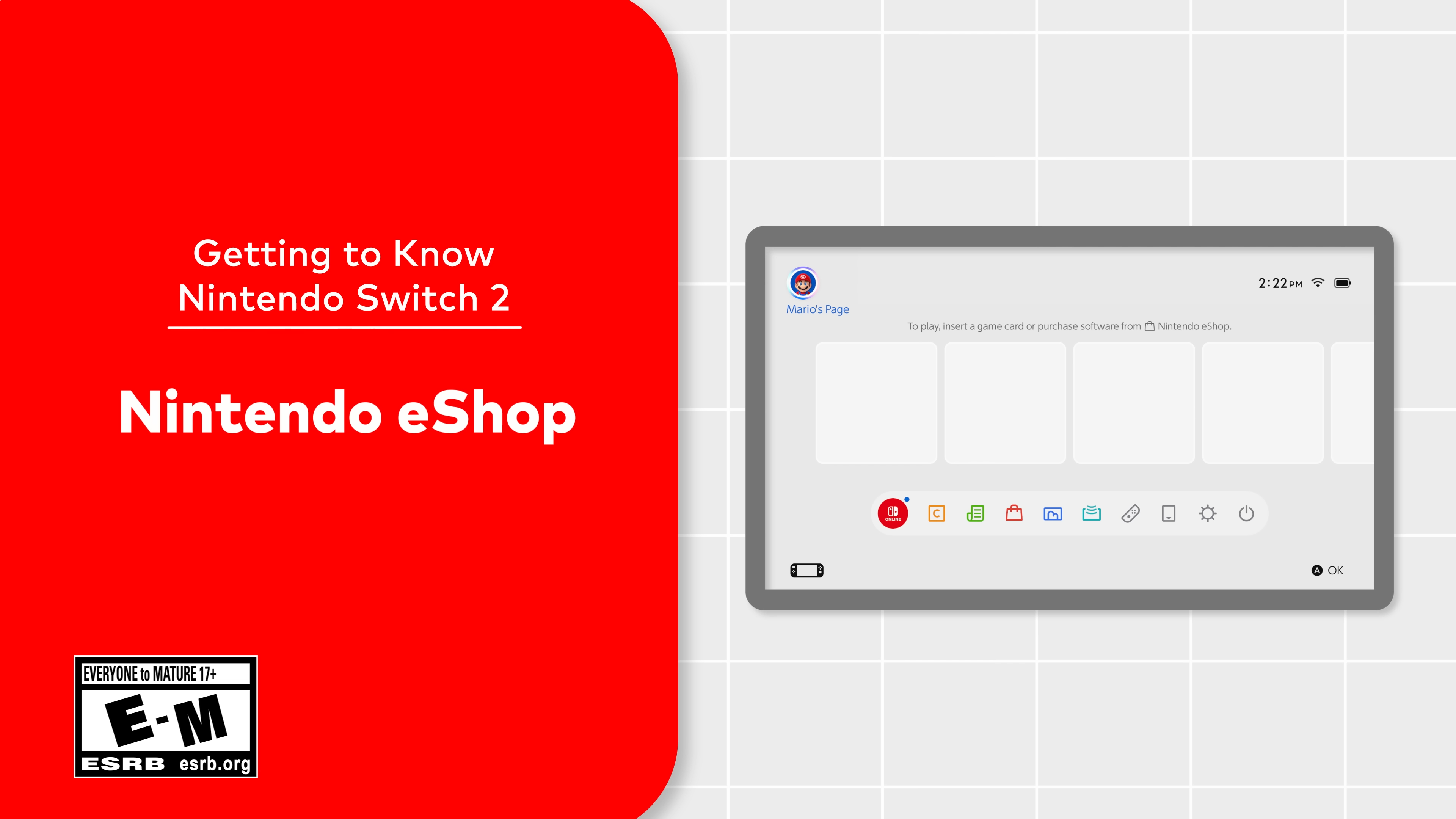
First things first: tap the orange shopping-bag icon on the Switch 2 HOME Menu. If you already have a Nintendo Account, link it, then breeze through two-factor verification. New users, meanwhile, can spin up an account directly on the console or via Nintendo’s website—handy if you’d rather type passwords on a full keyboard. Once signed in, choose a nickname and region; these choices decide the currency and local deals you’ll see. Switching regions later is possible but fiddly, so pick the store you’ll shop in most often.
Creating or Linking a Nintendo Account
Veterans still holding on to their Switch 1 libraries should link the same account here. Digital purchases follow your Nintendo ID, not the hardware, meaning your backlog is ready to redownload on Switch 2 at no extra cost (except for optional upgrade packs that add 4K assets or haptic feedback). If multiple family members share the console, set them up as individual users. Doing so keeps save data and Wish Lists separate—no more sibling wars over who deleted whose Metroid save.
Navigating Key Pages: Highlights, Bestselling, Recent Releases
Think of these three pages as the eShop’s compass points. Highlights showcases editorial picks—perfect for casual browsing when you’re not sure what to play next. Bestselling is raw popularity data, updating every Monday at 09:00 UTC to reflect the prior week’s revenue. It’s where evergreen titles like Mario Kart World rub shoulders with breakout indies. Recent Releases, refreshed every Thursday, is your time machine to the last 30 days of launches. Scroll a little further and you’ll spot genre filters plus an Indie World badge that rounds up smaller studios’ work.
Personalising the “For You” Section
Beneath Highlights lurks “For You,” an algorithm-driven lane that mines your owned software and playtime. Want it sharper? Rate the games you finish and prune your Wish List regularly. Each tap fine-tunes recommendations, cutting down on déjà-vu suggestions for titles you already own.
Quick Tip: Avoid Trailer Ambushes
Trailers autoplay with sound as soon as the cursor rests on a tile—loud enough to startle your cat. Hover over the settings cog in the top right and toggle “Auto-play video with sound” to mute. You’ll still see motion but keep your living room peaceful.
Making the Most of Your Wish List
Wish List is now anchored on the left navigation pane, no longer buried three menus deep. Tap the star icon on any game page to add it, then filter the list by “On Sale.” The store immediately surfaces discounts, and you can sort them from largest percentage to final price. Better yet, Switch 2 removes games from your Wish List after purchase—a tiny tweak that keeps the queue tidy without manual upkeep. If you enable push notifications, the console pings you when a saved game drops in price, turning impulse buys into strategic steals.
Redeeming Codes, Vouchers, and Upgrade Packs
Bought a download card at retail or scored a reviewer’s code? On the eShop’s left sidebar choose “Redeem Code,” enter the 16-character string, and hit Confirm. Seconds later the game icon lands on your HOME menu with a progress bar. Vouchers work similarly but bundle two first-party games at a reduced rate—ideal for pairing a summer hit with a holiday release. Upgrade packs deserve special mention: they transform a Switch 1 game you already own into a Switch 2 edition with higher frame rates and 4K assets. These appear on the original game’s page; scroll down to “Upgrade Available” and select “Purchase Pack.”
Payment Methods and Wallet Management
The Switch 2 eShop supports credit cards, PayPal, and prepaid funds. Adding PayPal links your Nintendo Account to PayPal across devices, streamlining future checkouts. Parents can set monthly spending limits per user; tap your user icon, then “Shop Settings,” and adjust “Allowed Monthly Expenditure.” eShop credit is stackable, so you can redeem multiple $5 cards from birthdays without worrying about wallet overflow. Pro tip: keep at least $0.05 in your balance—doing so bypasses re-entering card details on the next purchase.
Download Management and Storage Solutions
Switch 2 ships with more internal storage than its predecessor, yet 4K textures gobble space quickly. Slot in a UHS-I microSDXC card (up to 2 TB) by opening the rear kickstand. Once inserted, head to System Settings → Data Management → Quick Archive to move games off internal memory. Archive keeps save data intact, letting you redownload the full game later without losing progress. For sprawling RPGs consider installing directly to the microSD, leaving the faster internal NAND for titles you launch daily. Remember: archived icons stay on your HOME menu, greyed-out, so you won’t forget what’s in deep storage.
Using microSD Cards Effectively
Look for cards rated A2; the random-read performance trims load times. Avoid ejecting the card while the console is on—doing so risks data corruption. If you upgrade to a larger card, choose “Copy All Contents” on a PC rather than simply dragging folders; this preserves the hidden content ID files Nintendo uses to verify ownership.
Parental Controls and Family Sharing
Concerned about surprise credit-card bills? Nintendo’s free Parental Controls app (iOS/Android) links to your Switch 2 via a six-digit code. From your phone you can set daily play-time limits, lock purchases behind a PIN, and receive a monthly play report. Family groups add a second layer: designate a parent account as the admin, then invite child accounts. Games bought by the admin can be downloaded on a secondary console owned by a family member, though simultaneous play is restricted to one device at a time for paid titles. It’s a neat way to share a digital library without buying multiple copies.
Troubleshooting Common Issues
Most eShop hiccups fall into three buckets: connectivity, account conflict, and payment errors. If the store hangs on a white screen, toggle Airplane mode off and on to refresh the Wi-Fi chip. Error code 2134-4508 usually flags a ban related to unauthorized software; in that nightmare scenario you’ll need to contact Nintendo support, as the block is hardware-level. Payment declines often stem from outdated billing addresses—update them under “Shop Settings” and retry. Finally, if a game refuses to download, check System → Software Update for a console patch; outdated firmware can halt certain purchases.
Future Updates and Community Feedback
Nintendo has promised quarterly feature drops for the Switch 2 eShop. The June roadmap teases theme music options (nostalgic Wii Shop vibes, anyone?) and deeper filtering that separates Switch 1 and Switch 2 titles. Community reviews are also in testing—your star ratings today will shape a public score tomorrow. Keep an eye on the “News” tile on the HOME menu for patch notes. Together we can nudge the store toward a smoother, more personalized experience.
Conclusion
The Switch 2 eShop blends speed, style, and smarter discovery into a storefront that finally feels worthy of Nintendo’s sprawling catalogue. Nail the basics—link your account, fine-tune Wish Lists, manage storage—and the store transforms from a mere purchasing portal into a living library that always has something new waiting. Grab your Joy-Con 2, open that Highlights tab, and let the adventures download.
FAQs
- Q: Can I transfer my Switch 1 digital games to Switch 2?
- A: Yes. Link the same Nintendo Account on Switch 2 and redownload from your profile’s “Redownload” tab. Upgrade packs are optional for enhanced visuals.
- Q: Do I need Nintendo Switch Online to buy from the eShop?
- A: No. An internet connection and a Nintendo Account are the only requirements; Switch Online is needed only for multiplayer and cloud saves.
- Q: How do I check if a game supports 4K on Switch 2?
- A: The game’s store page displays a “Switch 2 Enhanced” badge under Supported Play Modes. Scroll down for resolution details.
- Q: Can multiple users share the same eShop funds?
- A: Each user has a separate wallet, but you can gift eShop cards or set up a family group so one admin account manages purchases.
- Q: What happens if I delete a purchased game?
- A: Deleting removes the data but retains your license and save file. You can redownload anytime without repaying, provided the title remains on the store.
Sources
- This Video Introduces The Nintendo eShop On Switch 2, NintendoSoup, June 14 2025
- Nintendo eShop (Switch 2) Review, Nintendo World Report, June 9 2025
- Beyond Mario Kart World: what else is worth playing on Nintendo Switch 2?, The Guardian, June 18 2025