


Summary:
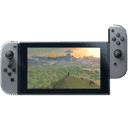
Nintendo’s Version 21.2.0 for Nintendo Switch and Nintendo Switch 2 is the kind of update that looks tiny on paper but still matters in real life. The official note is short and sweet: general system stability improvements to enhance the user’s experience. That sentence can feel like a shrug, especially if you were hoping for shiny new menus, big features, or anything you can point at and say, “There, that’s different.” But stability updates are more like tightening bolts on a roller coaster. You don’t cheer for the wrench, yet you definitely want the ride to stay smooth.
With 21.2.0, the best way to think about it is maintenance. Nintendo does these updates to keep the system reliable across millions of consoles, different networks, and an endless mix of games, controllers, storage setups, and accessories. Sometimes the changes are invisible because they’re meant to prevent problems rather than fix something you already noticed. That can include tiny refinements to system behavior, small compatibility adjustments, and behind-the-scenes housekeeping that reduces weird edge cases, like a download that fails for one specific router model or a rare sleep mode hiccup after a long session.
We’re also going to be practical. We’ll walk through how to install the update safely, what to check before you hit the button, and what to do if anything feels off afterward. If everything works perfectly, great – you’ll spend about as much time thinking about 21.2.0 as you do about breathing. If something doesn’t, we’ll have a clear plan that doesn’t involve panic, dramatic speeches, or throwing your console into the nearest canal.
What’s new in Firmware version 21.2.0
Version 21.2.0 is a classic Nintendo system update where the headline is stability. The official note is short, and that’s not an accident. Nintendo tends to keep system notes minimal unless a user-facing feature changes, and this release is positioned as maintenance rather than a makeover. If you’re scanning for new icons, a redesigned interface, or surprise settings, you’re probably going to come up empty. What we do get is a clear signal about intent: keep the system running smoothly, reduce the chances of odd glitches, and polish the little interactions you notice only when they go wrong. Think of it like housekeeping in a busy restaurant kitchen. The customers mostly see the food, not the cleaning, but the cleaning is what keeps the place running night after night without chaos.
The one-line patch note explained
“General system stability improvements to enhance the user’s experience” is Nintendo-speak for, “We fixed small stuff that isn’t glamorous, but it helps.” That can cover a wide range of tiny changes: background services behaving more consistently, system processes handling edge cases better, and the console doing a better job of staying steady under different conditions. Why so vague? Because a lot of these changes are not designed to be noticed, and listing every micro-fix can create confusion or invite unnecessary worry. If Nintendo wrote, “Adjusted a background routine to reduce a rare failure scenario,” plenty of people would read it as, “Uh-oh, my console is about to explode.” The simple phrasing keeps expectations realistic: you install it, and ideally, you don’t have to think about it again.
Why “stability” can still mean real changes
Even when the note is a single sentence, stability work can still be meaningful. Modern consoles are basically small computers that juggle network connections, downloads, controllers, storage, sleep mode, parental controls, and game launches – sometimes all at once. A tiny improvement in how the system handles memory, networking, or background tasks can prevent those annoying moments where something feels slightly off. You know the vibe: a download that sticks at 99 percent, a controller that takes an extra second to reconnect, or a system menu that feels sluggish after you’ve had the console running for ages. Stability updates are often aimed at those “only happens sometimes” issues, which are the hardest to reproduce and the most irritating to live with. If your console already felt rock solid, you might notice nothing. If you’ve ever had one of those little hiccups, this is Nintendo quietly sanding down rough edges.
Who gets the update and when it arrives
Version 21.2.0 is available for both Nintendo Switch and Nintendo Switch 2. In practice, that usually means the update is rolling out through Nintendo’s normal system update channels, and most consoles will see it automatically as long as they’re connected online. The exact moment you see it can vary, and that’s normal. Networks are messy, regions differ, and sometimes your console just hasn’t checked in yet. If your friend says they got it and you didn’t, it doesn’t mean your system is cursed. It usually means your console hasn’t pulled the update prompt yet, or it’s set to behave quietly in the background until you restart or open the right menu.
Automatic downloads vs manual updates
For many players, the update arrives automatically, downloads in the background, and then waits for you to install it. That’s the smoothest experience, especially if you leave your console in rest mode and keep it connected to Wi-Fi or ethernet. Manual updating is still useful, though, particularly if you want to install right away or if you suspect your console hasn’t checked for updates recently. The key point is choice: if you like things handled quietly, you can let the system do its thing. If you prefer being in control, you can trigger the update from the System Settings menu when you’re ready. Either way, the end result is the same: you land on Version 21.2.0 with the stability refinements applied.
How to update safely on Switch and Switch 2
Installing a system update is usually painless, but a little preparation can make it even smoother. The goal is simple: avoid interruptions. If the console loses power or the connection drops mid-download, you can end up wasting time, dealing with retries, or staring at a progress bar like it owes you money. The good news is that you don’t need a complicated ritual. You just want a stable network, enough battery or a charger connected, and a few minutes where you’re not rushing out the door. Treat it like letting a kettle boil – it’s quick, but you don’t want to walk away and forget it’s happening.
Quick checklist before you press update
Before you start, make sure the console has a decent charge or is plugged in. If you’re on Wi-Fi, being closer to your router can help, especially in homes where the signal gets moody in certain rooms. If you use a dock and have ethernet, that can be the easiest “set it and forget it” route. It’s also smart to close any game you’re running and let the system focus on the update process. If storage is very tight, consider freeing a little space first, since downloads and system operations tend to behave better when the system isn’t squeezed like a suitcase you sat on. None of this is complicated, and you don’t need to overthink it. The whole point is to reduce friction, so the update finishes cleanly and you can get back to playing.
Troubleshooting if the download stalls
If the download seems stuck, don’t immediately assume the update is broken. Progress indicators can pause while the console verifies files or waits on a shaky network moment. First, give it a little time, then try simple steps: pause and resume the download, toggle airplane mode on and off if you’re on a handheld connection, or restart the console to force a fresh connection. If Wi-Fi is unstable, moving closer to the router can be surprisingly effective – like stepping closer to the stage so you can actually hear the band. If multiple devices in your home are streaming or downloading heavily, pausing those for a moment can help too. If you still can’t get it moving, checking your internet connection in System Settings can reveal whether the issue is the console or the network. Most “stuck” updates are really just “fussy internet,” and once the connection behaves, the update behaves too.
Why Nintendo keeps shipping stability updates
Nintendo’s systems live in the real world, not a perfect lab. People use different routers, different internet providers, different storage cards, and different accessories. Some players leave their console in sleep mode for days, others power it off nightly. Some install every game under the sun, others keep three favorites and nothing else. Stability updates are Nintendo’s way of keeping that whole ecosystem running smoothly, even when the conditions aren’t ideal. It’s maintenance on a massive scale, and it’s often preventative. The best stability updates are the ones you never notice because they quietly stop a rare problem from ever reaching you. It’s like fixing a tiny leak in your roof before it becomes a dramatic indoor waterfall.
Security, compatibility, and behind-the-scenes cleanup
Stability work often overlaps with security and compatibility, even if the notes don’t spell it out. Systems evolve over time, and small changes can help the console handle new situations more reliably, such as newer games interacting with system functions, or background services communicating more consistently. Compatibility is a big deal too. When Nintendo supports a wide range of software and accessories, even small tweaks can reduce odd behavior that only affects a small slice of players. Cleanup also matters. Over time, firmware can pick up edge cases and legacy behaviors that benefit from tidying up. When Nintendo pushes a stability update, it can be part of an ongoing effort to keep the platform dependable as the library grows and usage patterns shift.
What developers and publishers usually care about
Game makers care about consistency. They want the system environment to behave predictably so their games run the way they’re supposed to across different consoles and user setups. When firmware improves stability, it can reduce strange, hard-to-track issues that show up only in rare combinations of settings, storage, or network conditions. Publishers also care about user experience in a very basic way: fewer crashes, fewer weird menu glitches, fewer “it froze when I did this one specific thing” reports. Even if 21.2.0 doesn’t change how a game looks or runs in an obvious way, it can still matter because it tightens the foundation underneath everything. That foundation is like the floorboards in a house. You don’t admire them daily, but you really notice if they start creaking.
What you might notice after installing 21.2.0
Let’s be honest: most people won’t “feel” a stability update. That’s not a failure, it’s the point. If your console was already behaving well, the update is more like insurance. You install it and carry on. That said, some players might notice subtle improvements in how quickly certain actions complete, how reliably connections behave, or how smoothly the system transitions between tasks. The tricky part is that day-to-day performance is influenced by many factors, like network quality, storage health, and what you’re running in the background. So if you notice a smoother experience after 21.2.0, it could be the update doing its job, or it could be that you restarted your console for the first time in a while and gave it a fresh start. Either way, the outcome is good: fewer annoyances and a system that stays steady.
Performance feelings vs measurable changes
It’s easy to fall into the “it feels faster” trap, because our brains love patterns, even when the data is fuzzy. A stability update can improve certain behaviors, but you may not have a clean way to measure it unless you were experiencing a specific, repeatable issue before. The most useful approach is practical: if you had a recurring annoyance, check whether it still happens after updating. If you didn’t have any problems, don’t go hunting for ghosts. Enjoy the fact that your console is up to date and less likely to hit rare snags. If you want a simple mental model, think of 21.2.0 as a tune-up. Your car doesn’t suddenly become a rocket ship, but it might run a little smoother, and it’s less likely to do something weird at the worst possible time.
Game and accessory compatibility considerations
System updates can sometimes affect compatibility, even if the notes don’t call it out directly. Most of the time, that impact is positive: it helps the system cooperate with more games and devices more reliably. If you use a variety of accessories, such as multiple controllers, a headset, or third-party docks, it’s reasonable to pay attention after an update, especially in the first day or two. The good news is that Version 21.2.0 is positioned as a stability refresh, so the expectation is minimal disruption. Still, it’s smart to know what to check if something feels different. The goal isn’t paranoia, it’s preparedness. Like keeping a spare umbrella, you hope you won’t need it, but you’ll be happy you thought ahead if the sky suddenly gets dramatic.
Controllers, headsets, and docks
After updating, it’s worth doing a quick sanity check with the accessories you use most. Pair your controllers, test a quick audio connection if you use a headset, and confirm your dock setup behaves normally. If anything seems off, the simplest fix is often re-pairing or reconnecting, because updates can occasionally nudge the system into being slightly picky until everything “introduces itself” again. If you use third-party accessories, keep in mind that compatibility can vary by brand and firmware. That doesn’t mean the update caused a problem, but it can be the moment you notice one. The best approach is calm and methodical: test one thing at a time, restart if needed, and confirm whether the issue is consistent or just a one-off blip.
MicroSD and storage health
Storage is one of the quiet heroes of a smooth console experience. If you use a microSD card, especially one that’s been in heavy use for a long time, occasional weirdness can pop up that looks like a system problem but is really storage wear or file hiccups. After an update, if you notice slow downloads, longer load times, or strange errors around installing, it’s worth checking available space and confirming the card is seated properly. If the system is nearly full, freeing space can make everything feel less cramped. If problems persist, trying a different microSD card can be a useful test, not because 21.2.0 “broke” anything, but because updates often prompt more reading and writing during installation. Think of it like moving furniture – if a floorboard was already weak, you notice it when you shift weight around.
Tips to keep your system running smoothly between updates
Stability updates help, but daily habits can help too. The Nintendo Switch family is designed to be simple, yet a few small routines can prevent common frustrations. Keeping enough free space, maintaining a solid network connection, and occasionally restarting the console can reduce those “why is it acting weird today?” moments. You don’t need to treat your console like a delicate museum artifact. It’s built to be used. Still, a little care goes a long way, the same way brushing your teeth is boring but strangely effective at preventing chaos later. If you want the system to feel snappy and dependable over months and years, small actions beat dramatic troubleshooting sessions every time.
Storage, rest mode habits, and network basics
If you’re the kind of person who leaves the console in rest mode constantly, consider restarting it now and then. A reboot clears out lingering background states and can resolve odd behavior before it becomes a pattern. On the network side, a stable connection matters for downloads, cloud saves, and digital purchases, so placing the console in a spot with strong Wi-Fi or using ethernet when docked can reduce headaches. For storage, keep a buffer of free space so the system can breathe, especially if you download large games. Also, avoid yanking the microSD card or power cable while the system is actively downloading or installing. It sounds obvious, but it’s the gaming equivalent of “don’t pull the toast out with a fork.” Simple rules, big impact.
What to do if something feels off after updating
Most updates install cleanly and you move on with your life. If something feels wrong afterward, the biggest mistake is going straight to worst-case thinking. Start small. Often, the fix is boring in the best way: restart the console, check your connection, and confirm the update actually completed. If a specific game is acting strangely, close it fully and relaunch. If your controller is being stubborn, re-pair it. If downloads are slow, test your internet speed on another device or reset your router. The goal is to treat the situation like a detective, not like a disaster movie. Step by step, you narrow it down until the problem either disappears or becomes clear enough to solve properly.
The fastest fixes that solve most headaches
The top three quick fixes are restart, reconnect, and retry. Restarting the console clears temporary states. Reconnecting accessories refreshes pairings and connections. Retrying a download after a brief pause can shake loose a stalled network moment. If the issue is related to storage, free up some space and try again. If it’s related to your account or online services, signing out and back in can sometimes help, though that’s less common. Also, check whether your issue is consistent or random. A one-time glitch after an update can happen, and it often doesn’t repeat. If it does repeat, that’s when it’s worth taking notes: what exactly happened, when, and under what conditions. That information makes solving the problem much easier.
When a factory reset makes sense
A factory reset is the “last resort” button, not the first move. It can make sense if the system is consistently unstable, basic functions misbehave repeatedly, and simpler troubleshooting hasn’t helped. Before you even consider it, make sure your saves are handled the way you want, especially if you rely on cloud saves or local storage. A reset can be effective because it wipes out lingering configuration issues and gives you a clean starting point, but it’s also time-consuming, and you’ll need to re-download games and reconfigure settings. If you’re only dealing with a minor annoyance, a reset is like using a fire hose to water a houseplant. If you’re dealing with repeated, serious issues that won’t budge, it can be the clean slate that finally restores normal behavior.
Looking ahead: what we can realistically expect next
After a stability-focused update like 21.2.0, it’s natural to wonder what’s next. Will the next version bring visible changes? Will there be quality-of-life tweaks people have been asking for? The honest answer is that system updates vary wildly. Sometimes you get quiet maintenance. Sometimes you get meaningful additions. The best approach is to stay grounded: judge updates by what Nintendo actually publishes, and be cautious about reading too much into version numbers. A bigger number doesn’t always mean a bigger change. If you want to keep your expectations healthy, treat stability updates as normal upkeep and treat feature updates as pleasant surprises when they happen. That mindset keeps you from feeling disappointed when Nintendo does exactly what it said it did.
How to watch for meaningful notes without guesswork
If you care about what changed, the most reliable method is to check Nintendo’s official system update information pages and compare the notes across versions. That gives you the clearest picture without rumors muddying the water. You can also pay attention to reports from established Nintendo news sites that quote the official notes directly. If you see people claiming secret features were added, keep your skepticism handy. Sometimes enthusiasts discover small technical details, but that’s different from Nintendo officially announcing a new function. The safest habit is simple: read the official note, install the update, and only chase further explanations if you personally notice a change or run into a problem. Otherwise, you’re just spending energy trying to hear footsteps in a quiet room.
Conclusion
Version 21.2.0 for Nintendo Switch and Nintendo Switch 2 is a maintenance-style update with one clear message: stability. It won’t change how your menus look, it won’t add a flashy new feature you can show off, and it won’t suddenly make your console feel like a different machine. What it can do is keep the system dependable in the background, reducing the odds of rare hiccups and smoothing out edge cases that only show up in the wild. If your console already runs great, you’ll likely notice nothing, and that’s a win. If you’ve run into the occasional odd moment, this kind of update is exactly what helps over time. Install it with a steady connection, give your system a clean restart afterward, and get back to playing, because the best stability update is the one you never have to think about again.
FAQs
- Does version 21.2.0 add any new features?
- No new user-facing features are listed in the official notes. The update is described as general system stability improvements, so it’s focused on maintenance rather than visible changes.
- Is it safe to install the 21.2.0 update right away?
- Yes, this is a standard system update. The safest approach is to install with a stable internet connection and the console plugged in or well charged, so the process isn’t interrupted.
- Why do Nintendo patch notes often just say “stability improvements”?
- Because many changes are small, preventative, and not designed to be noticed directly. Nintendo tends to keep notes brief unless there’s a clear user-facing change to describe.
- What should we do if the update download seems stuck?
- Give it a moment, then try pausing and resuming the download, restarting the console, and checking your network connection. If Wi-Fi is unstable, moving closer to the router or using ethernet can help.
- What if something feels off after installing 21.2.0?
- Start with simple fixes: restart the console, re-pair controllers, and relaunch the game or app that’s acting up. If issues persist and are repeatable, narrow it down step by step before considering bigger measures.
Sources
- Nintendo Switch System Update Information, Nintendo Support, January 12, 2026
- System Update Information for Nintendo Switch 2, Nintendo Support, January 12, 2026
- Nintendo Switch 2 System Update 21.2.0 Is Now Live, Here Are The Full Patch Notes, Nintendo Life, January 13, 2026
- Nintendo Switch 2 and Switch update 21.2.0 out now, patch notes, Nintendo Everything, January 12, 2026