







Summary:
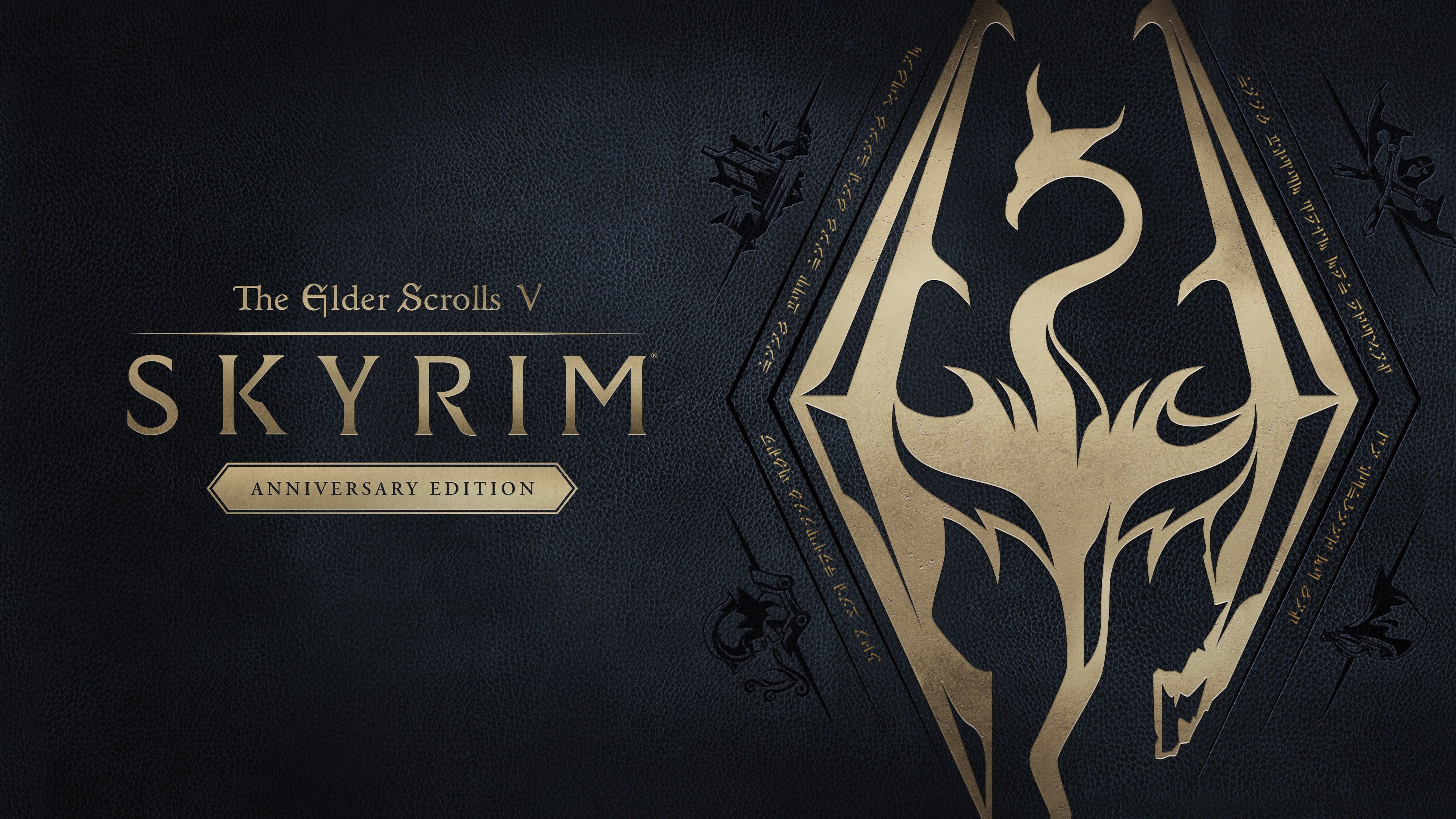
Skyrim landing on Nintendo Switch 2 should feel like slipping into a familiar pair of boots, but for plenty of players it’s been more like trying to sprint through mud. The biggest complaint has been input lag: you move the stick, press attack, or aim a bow, and everything reacts a beat too late. Bethesda has acknowledged the issue on its support site and, while it investigates, points to one specific setting that can help right now. The short version is simple: go into Skyrim’s Settings, open Gameplay, find “Gestures Attack,” and toggle it OFF.
We’re going to walk through exactly where that setting lives, what it changes, and how to tell if it’s genuinely helping or just placebo. We’ll also run through a quick, practical checklist that keeps you focused on what matters: tighter response when moving the camera, smoother menu navigation, and attacks that don’t feel like they’re arriving by carrier pigeon. Because input lag can also be affected by controller options and TV processing, we’ll cover a few Switch 2 and display settings worth checking without turning this into a hardware science project. Finally, we’ll talk about what to do if the toggle only improves things slightly, how to keep your saves safe while testing changes, and the best way to report the problem so it’s easier for Bethesda to reproduce and fix.
What’s going on with Skyrim on Nintendo Switch 2
Skyrim showing up on Nintendo Switch 2 should be a victory lap, but the current experience has frustrated a lot of people because controls can feel delayed. When input lag is present, actions don’t line up with what your hands are doing, and that mismatch is exhausting. You swing a sword and the animation arrives late, you nudge the camera and it drifts like it’s thinking about it first, and archery can feel especially rough because timing matters. Bethesda has publicly acknowledged reports of input lag on Switch 2 and says it’s investigating. That’s important, because it means the issue isn’t being brushed off as “just you.” Until a broader fix arrives, the best move is to focus on the one change Bethesda specifically highlights, then confirm improvements with a simple set of checks instead of guessing based on vibes alone.
The fastest in-game setting to try first
If we want the quickest possible win, we start with the setting Bethesda calls out: “Gestures Attack.” The reason this is such a good first step is that it’s immediate, reversible, and doesn’t require reinstalling anything or rebuilding your entire setup. Think of it like tightening a loose screw before you take the whole device apart. Input lag can have multiple causes, but when a developer points at one toggle and says “try this while we investigate,” that’s the closest thing to an official shortcut you’ll get. Even better, changing it takes less time than reading this paragraph, which is saying something. Flip it off, return to gameplay, and test movement, camera panning, and attacks right away so you can tell whether it’s making a meaningful difference for you.
Where to find “Gestures Attack”
Here’s the exact path, straight from Bethesda’s suggestion: pause the game, go to Settings, open Gameplay, then find “Gestures Attack” and toggle it to OFF. That’s it. No secret button combos, no hidden menu that only appears under a full moon, and no need to start a new character. Do it from your current save, back out of the menus, and immediately try the same actions that felt delayed before. If you’re in the middle of a dungeon and everything feels like it’s running on a tiny delay, this is the fastest thing to test without losing momentum. And if you’re the kind of player who hates changing options because it feels like “messing with the intended experience,” remember: this is a temporary workaround while the underlying issue is being investigated.
What changes when “Gestures Attack” is turned off
Turning “Gestures Attack” off removes the game’s ability to interpret certain gesture-driven attack inputs, which can be useful when motion-based features feel great, but annoying when they get in the way. On a platform where motion and controller features can overlap, gesture recognition can sometimes introduce extra processing or input interpretation that doesn’t feel invisible to the player. The point of this toggle is to prioritize direct, traditional button-and-stick input without extra layers. Practically, you may notice fewer moments where attacks trigger in a way that feels slightly out of sync with your press, and the overall “weight” of the controls can feel a bit less sticky. It won’t magically rewrite the engine, but it can help reduce friction where gesture interpretation is part of the chain between your hands and what’s happening on screen.
Why this toggle can affect input response
Input response is like a relay race: your controller sends a signal, the system interprets it, the game decides what to do, and the result is rendered to the screen. If any runner in that chain slows down, you feel it. Gesture-based input can add another “handoff” to the relay, because the game may be checking for gesture conditions alongside normal commands, especially if it’s designed to support multiple input styles. When everything is tuned perfectly, you never notice. When it isn’t, it can feel like there’s a tiny delay before the game commits to your action. Disabling “Gestures Attack” simplifies the decision-making path. The goal is not to change how Skyrim plays at its core, but to remove one possible contributor to that sluggish, behind-the-beat feeling while Bethesda investigates what’s causing the broader issue on Switch 2.
Quick checklist to see if it actually improved
After flipping the toggle, we want to test with purpose, not hope. First, rotate the camera in an open area and see if the view tracks your stick movement more cleanly, especially during quick left-right direction changes. Second, try rapid single attacks, then a short combo, and pay attention to whether attacks start closer to the instant you press the button. Third, open and close menus a few times and check whether the cursor or selection feels snappier, because UI delay can be a tell. Fourth, test aiming a bow and doing quick micro-adjustments, since archery makes even small delays obvious. Finally, do a quick docked versus handheld comparison if you play both ways. The point isn’t to obsess over milliseconds, it’s to answer one simple question: does it feel more connected to your hands than it did five minutes ago?
Other Switch 2 settings worth checking
If “Gestures Attack” helps but you still feel delay, the next step is checking a couple of settings that commonly influence how responsive games feel. We’re not going to throw twenty sliders at you and call it a day. Instead, we focus on the usual suspects: controller features that change how inputs are interpreted, and display processing that can add latency before the picture reaches your eyes. The tricky part is that you can have a perfectly fine game signal that still feels laggy because your TV is doing extra work, like smoothing motion or applying heavy image processing. So, after the in-game toggle, we look at Switch 2 controller options and TV settings with one goal in mind: reduce “helpful” features that actually slow down reaction time.
Controller and motion settings to review
Even when a game is mostly button-driven, motion-related features can interact with input interpretation in ways that feel inconsistent. If you’re using motion controls, try turning them off temporarily and see whether the controls feel more direct, especially during camera movement. If you’re using different controllers, test another option if you have one available, since some players notice differences between controller types depending on their setup. It’s also worth confirming that your controller is updated and connected reliably, because unstable connections can add a different kind of delay that feels like sluggishness. Keep the test simple: change one thing, then re-test the same actions in the same location. Treat it like tasting soup – adjust one ingredient at a time, or you’ll never know what actually changed the flavor.
TV and display settings that can add delay
Your TV can be the sneakiest villain in the room. Many TVs apply processing that makes movies look smoother, but games feel less responsive. Look for a dedicated “Game Mode” and enable it, because it’s designed to reduce display latency by disabling extra processing. Also check for motion interpolation, smoothing, or noise reduction options, and turn them off for your gaming input. If your TV has multiple HDMI ports, make sure you’re using the one intended for gaming features, since some sets treat ports differently. None of this is Skyrim-specific, but when you’re already dealing with a game-side delay, shaving off any extra display delay can be the difference between “still annoying” and “finally playable.” The key is to test right after changes so you can feel the result, not just assume it helped.
When the fix doesn’t fully solve it
Sometimes the “Gestures Attack” toggle improves things but doesn’t completely eliminate the problem. If that’s your experience, you’re not alone, and it doesn’t mean you did anything wrong. It just means the input lag likely has more than one contributor, and the toggle only removes one part of the chain. In that situation, the goal shifts from “perfect fix” to “playable enough,” at least until Bethesda ships a broader update. This is where small quality-of-life choices matter: limiting how often you switch between input styles, keeping your tests consistent, and avoiding settings that make responsiveness feel worse. It’s not glamorous, but it’s effective. And yes, it can feel ridiculous to do this dance for a game that’s been around forever, but here we are – again.
Workarounds that avoid extra delay while you play
If you’re still feeling delay, try leaning into playstyles that are less timing-sensitive for the moment. For example, slower melee swings and blocking can feel less punishing than precision archery if responsiveness is off by a fraction. In combat, give yourself a little extra spacing so your reactions aren’t as dependent on perfect timing. If you notice certain areas or effects make things feel worse, step into an open exterior zone and compare, because that can help you identify whether the sensation spikes during heavy action. Keep sessions shorter if you find the lag mentally tiring, because fighting the controls is like driving with a slightly loose steering wheel – doable, but it wears you down. The aim is to keep Skyrim fun while the underlying issue is being worked on, not to force yourself through frustration like it’s some kind of endurance sport.
Keeping your save safe while troubleshooting
Whenever we start changing settings and testing performance, it’s smart to protect the one thing we actually care about: your save file. Before you do extended testing, create a fresh manual save in a stable location, like an interior room where nothing is attacking you. If you rotate through multiple characters, make sure you’re saving the right one, because accidentally overwriting a main file is the sort of tragedy that makes people stare silently at a wall. During troubleshooting sessions, avoid relying only on autosaves. Create a couple of manual “checkpoints” so you can roll back if something feels off after changes. This isn’t about panic, it’s about being practical. Skyrim is huge, time is precious, and nobody wants to lose progress because they were trying to make the controls feel normal.
Reporting the problem in a way that helps
If you want Bethesda to fix something, the best gift you can give is a clear, reproducible report. Instead of “it feels bad,” describe what you’re seeing: how long the delay feels, whether it happens docked, handheld, or both, and whether turning “Gestures Attack” off helped, even slightly. Include details like the controller you used and whether the issue is worse during combat, menus, or camera movement. Bethesda’s support site provides a path for feedback, and using that channel helps collect reports in a format teams can actually work with. The more consistent patterns they can find across player reports, the easier it is to pinpoint what’s happening. It’s not glamorous, but it’s the difference between shouting into the void and handing someone a map with a big red circle on it.
What to watch for in future updates
Because Bethesda has said it’s investigating, the most practical thing to do is watch for official updates and patch notes that mention input responsiveness, performance, or Switch 2-specific fixes. When a fix arrives, re-test with the same checklist you used earlier, because it’s easy to think something improved when you simply got used to it. Also consider toggling “Gestures Attack” back on after an update if you actually like gesture features, because a future fix may remove the downside that made the setting problematic in the first place. Keep expectations grounded: some updates may improve the situation gradually rather than instantly. The win is getting back to that “connected” feeling where Skyrim’s controls stop being the main character, and the adventure takes the spotlight again.
Should you stick with the original Switch version for now
If you already own and enjoy the original Switch version, it can be worth sticking with it temporarily if the Switch 2 version’s responsiveness is bothering you. Smooth control response often matters more than small visual upgrades, especially in a game where exploration and combat are constant. If you’re the type who can’t un-feel input lag once you notice it, choosing the version that feels better can save your enjoyment. On the other hand, if the “Gestures Attack” workaround makes the Switch 2 version feel good enough, you may prefer the newer release for its platform-specific features. The best choice is the one that makes you want to keep playing instead of quitting after ten minutes. Skyrim is supposed to be a cozy fantasy escape, not a test of patience.
The takeaway
If Skyrim on Switch 2 feels delayed, the most direct step is the one Bethesda itself points to: Settings – Gameplay – “Gestures Attack” – OFF. It’s quick, it’s safe to test, and it gives you an immediate sense of whether you’re dealing with a setting-level issue that can be improved right now. After that, verify the change with a simple checklist instead of guessing, then check controller and TV settings that can quietly add extra delay. If the improvement is only partial, lean on temporary workarounds that keep the game enjoyable while official investigation continues. Skyrim has survived on every platform imaginable because it’s still a special place to get lost in. With a few smart tweaks, we can get back to wandering, looting, and making questionable life choices in Whiterun – minus the “why does my sword swing late?” feeling.
Conclusion
The Switch 2 version of Skyrim should feel responsive, and when it doesn’t, it’s hard to ignore. Bethesda’s current recommendation is simple: toggle “Gestures Attack” OFF in the Gameplay settings while the input lag reports are being investigated. Start there, test immediately, and trust your hands more than your hopes. If you still feel delay, clean up the rest of the chain by checking controller options and turning on your TV’s game-focused settings to cut out extra processing. Keep your saves protected while you experiment, and if you’re still seeing issues, report the details in a clear way that helps the problem get reproduced. The goal is straightforward: make Skyrim feel like Skyrim again, so the only thing slowing you down is a frost troll on a narrow mountain path.
FAQs
- Where is the “Gestures Attack” setting in Skyrim on Switch 2?
- Pause the game, open Settings, go to Gameplay, then find “Gestures Attack” and toggle it to OFF. After that, back out and test camera movement and attacks right away to feel the difference.
- Does turning off “Gestures Attack” completely fix the input lag?
- It can help, but results can vary. Treat it as the first and fastest workaround, then use a quick checklist to confirm whether responsiveness actually improved in your setup.
- Why would a gestures setting affect input delay?
- Gesture interpretation can add another layer between your controller input and the game’s response. Turning it off simplifies the input path so actions rely more directly on traditional button-and-stick commands.
- What else can make input lag feel worse besides the game itself?
- TV processing is a big one. Enabling your TV’s Game Mode and disabling motion smoothing or heavy image processing can reduce extra display delay, making controls feel more immediate.
- Should we keep playing the Switch 2 version or go back to the older one?
- If the workaround makes the Switch 2 version feel good enough, stick with it. If the delay still ruins combat or aiming, the older version can be the better option until Switch 2-specific fixes improve responsiveness.
Sources
- What do I do if I’m experiencing input lag on the Nintendo Switch 2 in The Elder Scrolls V: Skyrim Anniversary Edition?, Bethesda Support, Accessed December 17, 2025
- Skyrim Switch 2 input lag is being investigated by Bethesda after players complained it made the RPG “unplayable,” while the devs offer a potential solution in the meantime, GamesRadar+, December 11, 2025
- Mini Review: The Elder Scrolls V: Skyrim Anniversary Edition (Switch 2) – Just Hugely Disappointing, Nintendo Life, December 10, 2025
- The Elder Scrolls V: Skyrim Anniversary Edition on Switch 2 appears to suffer from serious input lag (UPDATE), GoNintendo, December 11, 2025
- Bethesda still investigating input lag in Skyrim on Switch 2, suggests turning Gestures Attack off, My Nintendo News, December 15, 2025