


Summary:
Super Mario Galaxy 1 + 2 has moved to Version 1.3.0, and Nintendo’s message is short, familiar, and laser-focused on playability across Nintendo Switch and Nintendo Switch 2. The official notes do not list specific fixes. Instead, Nintendo says several issues were addressed to improve the gameplay experience on both systems, plus additional issues specifically on Switch 2. That sounds vague because it is vague, but it still tells us something useful: this is a maintenance update, not a feature drop. In other words, we should expect fewer headaches, not new toys.
The practical detail that matters most is the compatibility note. Nintendo states the software must be updated to Version 1.2.0 or later to play on Nintendo Switch 2, and Version 1.3.0 continues that requirement. That means the update is not optional for Switch 2 players, and it also explains why Nintendo keeps repeating the same phrasing. Switch 2 support brings its own edge cases, and Nintendo is clearly smoothing them out in small steps while keeping the messaging consistent.
So what do we do with an update that refuses to gossip about its own changes? We get smart about verification and testing. We confirm the installed version, update safely, and then check the places that usually reveal whether stability work actually landed. Think menus, quick transitions, long play sessions, and moments where the game streams a lot of effects and movement at once. If everything feels the same, that can still be a win, because “the same” with fewer hiccups is the whole point of an update like this.
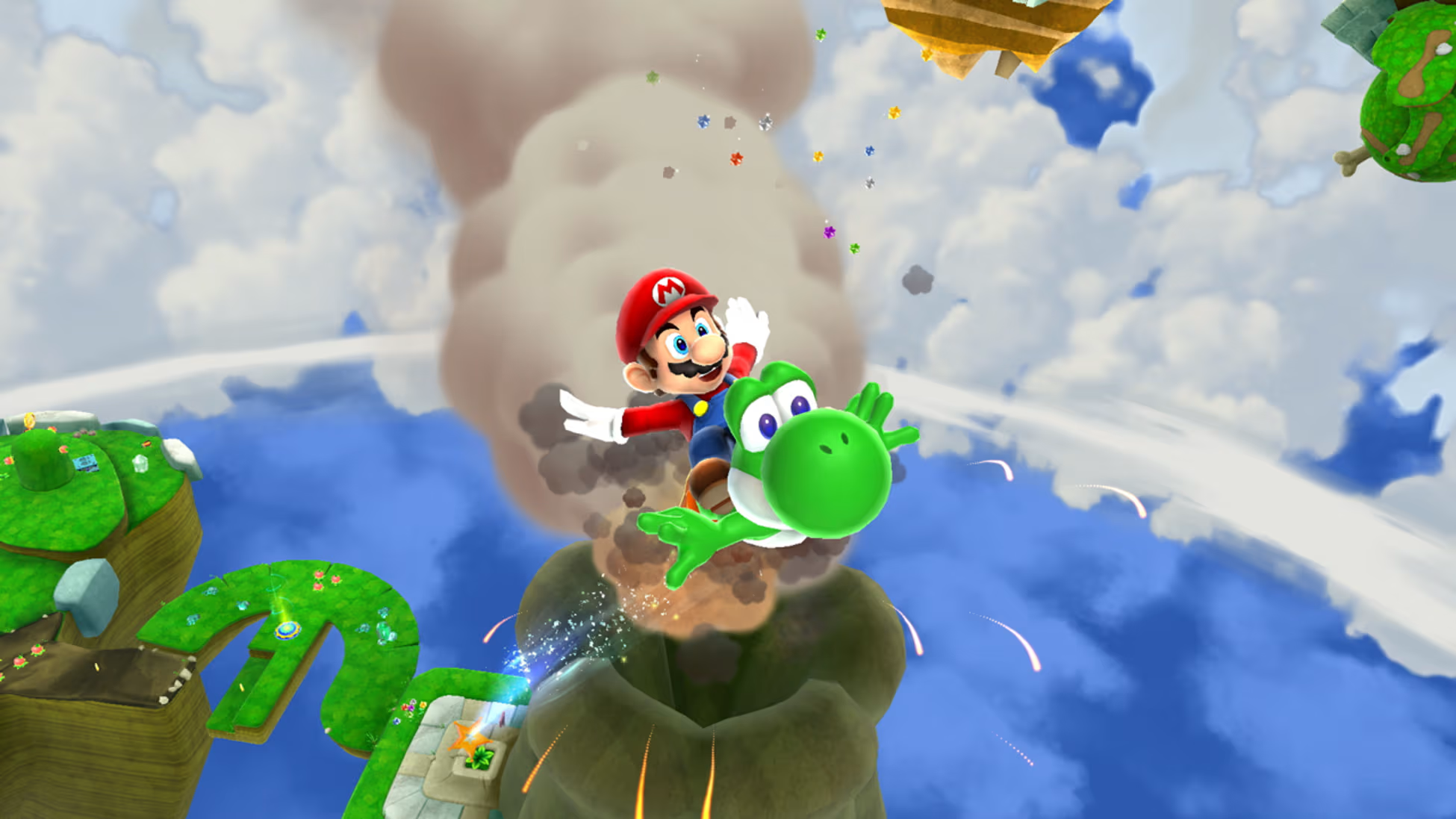
Super Mario Galaxy 1 + 2 Version 1.3.0 update
Version 1.3.0 is a straight-shooting update: it targets “gameplay experience” improvements on Nintendo Switch and Nintendo Switch 2, with extra fixes called out for Switch 2 specifically. No new modes, no new options menu surprise, no hidden extras that suddenly make the Observatory throw a party. That might sound a little deflating, but it also sets expectations in a healthy place. Maintenance updates are like tightening the bolts on a roller coaster. You do not cheer for the wrench, but you absolutely want the wrench to show up.
The key takeaway is that Nintendo is still actively supporting the compilation on both platforms and explicitly treating Switch 2 as its own environment with its own needs. When a company repeats the same style of patch note across multiple versions, it usually means the fixes are real but not the kind that read well in a bullet list. Crashes, softlocks, edge-case glitches, and compatibility quirks are hard to describe without writing a mini novel, so Nintendo keeps it simple and consistent. For players, the win is not a headline. The win is fewer weird moments that yank you out of the magic.
Release date and what Nintendo actually said
Nintendo’s official update history ties Version 1.3.0 to mid-December 2025, with regional support pages showing a release date around December 18-19, 2025 depending on the page you are reading. The patch notes themselves are minimal: several issues were addressed to improve the gameplay experience on both Nintendo Switch 2 and Nintendo Switch, and several other issues were addressed to improve the gameplay experience on Nintendo Switch 2. That is the full message, and there is no secret second page where Nintendo suddenly starts naming specific bugs.
Even though the wording is short, it still gives us a practical map. Nintendo is telling us the update applies broadly, but Switch 2 gets additional attention. That usually means the baseline build is shared, and then platform-specific fixes are layered in where needed. It also means we should treat the update like a reliability pass. If you have been playing without issues, you may not notice much. If you have been hitting rare hiccups, this is the kind of update that can quietly make those problems disappear without ever taking credit for it. It is the gaming equivalent of a stagehand fixing the spotlight before the show starts.
Why the notes look identical for Galaxy 1 and Galaxy 2
Nintendo uses the same wording for both Super Mario Galaxy and Super Mario Galaxy 2 in this compilation, and that is not as strange as it looks. These releases share the same platform targets and the same general goal: run consistently on Nintendo Switch and Nintendo Switch 2. When the fixes are in shared systems like input handling, system-level compatibility, stability under the Switch 2 environment, or how the software behaves when suspended and resumed, the patch notes will naturally read the same. Nintendo is not saying both games had the exact same bug in the exact same spot. Nintendo is saying the same categories of issues were addressed across both titles.
There is also a human reason. Patch notes are communication, and Nintendo often chooses clarity over detail. If the fixes are a batch of small changes, listing them can create confusion, arguments, and support headaches, especially if some issues were rare. A player who never experienced a problem will read a long list and assume the game was broken. A player who did experience a problem will look for their exact issue by name and get annoyed if the wording does not match what they saw. By keeping the wording consistent, Nintendo avoids both traps and focuses on the result: a better play experience on both systems.
Switch vs Switch 2: what “improve the gameplay experience” usually covers
When Nintendo says “improve the gameplay experience” without specifics, it usually points to under-the-hood work rather than headline features. Think stability, compatibility, and those little glitches that do not show up for everyone but feel enormous when they happen to you. A fix could be about a rare crash after long sessions, a hiccup during a transition, or a situation where the software behaves oddly when you return from sleep mode. These are the kinds of problems that make players say, “Wait, what just happened?” and then lose five minutes of momentum trying to get back into the flow.
On Switch 2, “gameplay experience” can also include platform-specific behavior like performance consistency, controller handling, and system-level interactions. Nintendo calls out Switch 2 separately in the notes, which tells us the team is actively tuning how the software behaves in that environment. Importantly, this does not guarantee that any one specific issue you have seen is fixed. It does mean Nintendo is working in the right neighborhood. If we treat the update like a quality pass, we can focus on practical checks rather than chasing rumors. The patch notes are not a treasure map. They are a sign that the locksmith has been back to tighten the doors.
Stability fixes – the unglamorous wins
Stability improvements are the vegetables of gaming updates. Nobody is excited to order them, but we feel better when they are on the plate. In real terms, stability work often aims to reduce crashes, prevent freezes, and stop edge-case situations where the game can get stuck. The Galaxy games have lots of moving parts: fast transitions, physics, camera shifts, mission states, and layered effects. If even one part occasionally misbehaves, it can create a rare but nasty problem. A stability update can quietly patch multiple small issues like that without changing anything you can point to in a screenshot.
Stability work also tends to protect players who do “normal” things that the software still needs to handle perfectly. Putting the system to sleep mid-level, resuming after a quick break, hopping between levels quickly, or playing for a long session without closing the software should all be safe. When Nintendo says “several issues,” it suggests a batch of fixes, not a single big repair. That can be a good sign because it means Nintendo is chasing multiple loose ends at once. It is like sweeping the whole floor instead of only picking up the most obvious crumb.
Performance and responsiveness – what you might notice
Performance improvements can be subtle, especially when patch notes do not specify targets like frame rate or resolution. Still, a “gameplay experience” update can sometimes show up as smoother transitions, fewer stutters during busy moments, and more consistent responsiveness when you move between areas. The Galaxy games throw a lot at the screen: star bits, particle effects, enemies, and rapid camera movement. Even small optimizations can help keep the experience feeling steady, which matters because these games rely on rhythm. When the controls feel clean and the motion is consistent, it is easier to trust your jumps.
On Switch 2 specifically, additional fixes might address how the software behaves in that hardware and system environment, even when you are playing through compatibility. That could include things like improved consistency during handheld play, better behavior when switching controllers, or fewer oddities when resuming from sleep. The important part is how we interpret it: we should not claim a specific upgrade that Nintendo did not announce. Instead, we can focus on what players can validate. After updating, if menus feel snappier, transitions look smoother, or long sessions feel more stable, those are the kinds of real-world outcomes that match Nintendo’s wording without inventing details.
The Switch 2 requirement – why Version 1.2.0 or later matters
Nintendo includes a clear compatibility note: the software must be updated to Version 1.2.0 or later to play on Nintendo Switch 2. Version 1.3.0 keeps that requirement in place, which is a big practical detail for anyone moving between systems. If you try to play without meeting that minimum, you are not dealing with a minor suggestion. You are dealing with a gate. This is Nintendo telling us that Switch 2 play depends on a baseline patch level that likely includes compatibility and system behavior adjustments.
This also explains why the patch notes for Version 1.2.0 and Version 1.3.0 can look similar. If Nintendo established Switch 2 support as a minimum requirement starting at 1.2.0, then subsequent updates may continue refining that support while keeping the messaging consistent so nobody misses the rule. It is like a venue sign that says “ID required.” The sign does not change every week, but the bouncers still adjust how they handle the line. For players, the best move is simple: keep the software updated if Switch 2 is part of your setup, even if you are mostly playing on the original Switch.
How to confirm your installed version in two quick checks
First check: on the HOME Menu, highlight the game icon without launching it, press the + button or – button, and look for the version number displayed under the title. This is the fastest way to confirm whether Version 1.3.0 is actually installed, and it saves you from guessing based on whether you remember seeing a download bar last night. Second check: launch the game and look at the title screen, where the current version is typically displayed. If both checks agree, you can trust the result and move on to playing instead of playing detective.
If you are juggling multiple consoles or profiles, these checks matter even more. It is easy to assume everything updated automatically, and most of the time it does, but assumptions are how we end up troubleshooting something that is not actually broken. Verifying the version also helps if you are comparing behavior between Switch and Switch 2, because it keeps the comparison fair. When we want to know whether the update helped, we need to be sure we are actually running the update. Otherwise, we are judging a movie trailer while the projector is still off.
How to update the software safely
Updating safely is mostly about being boring in the best way. Keep the console connected to the internet, make sure there is enough free storage for the update download, and avoid interrupting the process mid-install. On the HOME Menu, highlight the software, press + or -, choose Software Update, and then pick “Via the Internet.” The system will handle the rest. Once it finishes, the latest version number should appear, and your save data remains available after the update. That last point is important because it removes the biggest fear people have when they see an update prompt: “Am I about to lose my progress?”
If automatic updates are enabled, the update may download and install in the background when the console is online. That is convenient, but it can also make players unsure whether the update actually happened. That is why the version checks above are worth doing, especially on Switch 2 where the minimum required version note is part of the story. Updating is not just a “nice to have.” It can be a “must have” depending on how you play. The best habit is simple: update first, verify once, then enjoy the game without the nagging feeling that you might be missing something important.
Automatic update vs manual update
Automatic updates are the set-it-and-forget-it option, and they usually work fine as long as your console stays online and the setting is enabled. The advantage is obvious: less effort, fewer interruptions, and you often do not even notice the update happened until you launch the game. The downside is also obvious: when something feels different, you might not know whether you are even on the latest version. That uncertainty can turn normal little quirks into a spiral of “Is it the update? Is it my controller? Is it my imagination?” Nobody needs that stress while chasing Power Stars.
Manual updates are better when you want certainty. You trigger the update, you watch it complete, and you confirm the version right after. It is also the cleaner option if you are troubleshooting, because it removes variables. If you are playing on Switch 2, manual updating can be especially helpful the first time you install or migrate the game, because the minimum version requirement is a real factor. Either way, the goal is the same: reach Version 1.3.0 and confirm it. After that, the update fades into the background where it belongs, like a good referee who never becomes the main character.
What to test after updating
When patch notes are vague, testing is how we turn uncertainty into clarity without making up facts. The goal is not to hunt for mythical changes. The goal is to confirm the update did what it claims: improve the gameplay experience. The best approach is to test a mix of “normal play” and “stress moments.” Normal play tells you whether the game feels steady in the way you actually spend most of your time. Stress moments tell you whether the software holds up when a lot is happening, like fast movement, heavy effects, or rapid transitions.
A good testing mindset is simple: pick a short checklist, run it for 15 to 30 minutes, and then stop thinking about it. If everything feels fine, great. If you notice a repeatable issue, make a note of what triggered it. Testing should not feel like homework. It should feel like checking the tires before a road trip. Once you know the tires are good, you stop staring at them and start enjoying the drive. The Galaxy games are at their best when we let them pull us into that floating, musical, gravity-bending mood. Testing is just the quick warm-up so the main show can start.
Galaxy 1 stress tests – where small issues tend to show up
For Super Mario Galaxy, stress tests are about transitions and dense moments. Try moving through a few galaxies back-to-back without closing the software, especially if you tend to bounce between missions quickly. Pay attention to how menus respond when you are switching destinations, adjusting settings, or saving and returning to the hub. Then do a longer play stretch where you keep the session running, use sleep mode once, and resume. If stability was improved, this kind of routine play should feel uneventful in the best way. No surprise freezes, no odd hangs, no “why did that take so long?” moments.
Also pay attention to input feel during sections where you are making quick corrections, like tight platforming or moving targets. We are not claiming any specific input lag fix because Nintendo did not say that, but we can still check whether the game feels consistent. Consistency is the keyword. If the controls feel the same from minute one to minute sixty, that is often a sign that the software is behaving well. And if you notice something strange, try to recreate it once. If it does not happen again, it might have been a one-off. If it happens reliably, that is useful information for troubleshooting and support.
Galaxy 2 stress tests – fast levels, tight timing, and menus
Super Mario Galaxy 2 leans into brisk pacing and tighter challenges, so stress testing here is about speed and repetition. Run a few levels that demand quick movement and lots of small inputs, then return to the map and swap to another level quickly. Watch how the game behaves when you move between stages, load new areas, and restart attempts. If the update improved the gameplay experience, repeated restarts and quick transitions should feel steady. Again, the best result is boring. No weird pauses, no hiccups that break your rhythm, and no odd behavior after repeated retries.
Menus matter more than people admit. If menus are sluggish or glitchy, it drags down the whole experience because you interact with them constantly. So check the basics: opening and closing menus, changing settings, and returning to the main selection flow. Then try a longer handheld session if that is how you usually play, because handheld play is where you feel responsiveness the most. Galaxy 2 is also a game where timing matters, so if anything feels inconsistent, you will notice. If everything feels smooth and predictable, that aligns perfectly with Nintendo’s goal even if the patch notes refuse to brag about specifics.
Troubleshooting if the update will not install or feels off
If the update will not install, start with the simplest causes: internet connection and storage space. An unstable connection can interrupt downloads, and low storage can stop the update before it even begins. If the console is online and you still cannot update, try initiating the update manually from the HOME Menu using Software Update via the internet. After the update completes, confirm the version number using the two checks mentioned earlier. This prevents the common situation where the update actually installed, but the player still thinks it did not because they never saw a big notification.
If the update installs but something feels off, the best troubleshooting tool is repeatability. Can you recreate the issue in the same place, in the same way? If you cannot, it may have been a one-time hiccup. If you can, then you have something solid to work with. Also consider controller behavior. If inputs feel strange, try a different controller or check connection stability, especially if you are swapping between docked and handheld play. Troubleshooting is not about assuming the worst. It is about narrowing possibilities until the cause becomes obvious, like turning on lights one by one until you see what is actually in the room.
When to reboot, when to reinstall, and when to contact support
A reboot is the first easy step when anything feels weird after an update. It clears temporary state and can resolve odd behavior that is not truly a game issue. If the update itself seems stuck or the game behaves inconsistently in a way you can repeat, a reinstall can be a stronger reset, because it ensures the installed data matches what the system expects. Save data is typically separate from the software install, but it is still smart to understand your own setup before taking bigger steps. The main idea is to move from light fixes to heavier fixes, not jump straight to the most dramatic option.
If you hit a problem that is consistent, disruptive, and clearly tied to the software behaving incorrectly, contacting Nintendo support is the sensible move. When you do, having details helps: the version number, the console type, and what you were doing when the issue occurred. This is where your earlier testing notes can pay off. “It broke” is frustrating for everyone. “It breaks when I do X, on Version 1.3.0, after Y steps” is actually useful. Think of it as the difference between telling a mechanic “my car is sad” and telling them “it makes a clunk when I turn left at low speed.” One leads to guessing. The other leads to fixing.
Keeping expectations realistic without killing the vibe
It is easy to look at short patch notes and feel underwhelmed, but updates like Version 1.3.0 are not trying to be exciting. They are trying to be invisible. When everything works, we stop thinking about patches and start thinking about stars, music, gravity tricks, and that satisfying feeling of nailing a tricky jump. That is exactly where Nintendo wants your attention. The best maintenance work is the kind that disappears into the experience until you forget it ever needed to happen.
If you were hoping Version 1.3.0 would add new surprises, it is fair to feel a little let down. Still, there is a quiet upside. Nintendo is continuing to polish how the compilation plays across Switch and Switch 2, and the explicit Switch 2 focus suggests ongoing tuning for that environment. So the right mindset is simple: update, verify, play, and only switch into troubleshooting mode if you actually see a real problem. We do not need to turn every patch into a conspiracy board with string and pushpins. Sometimes a patch is just Nintendo doing the responsible thing. It is not flashy, but it keeps the stars shining.
Conclusion
Version 1.3.0 for Super Mario Galaxy 1 + 2 is a maintenance update with a clear purpose: improve the gameplay experience on Nintendo Switch and Nintendo Switch 2, with additional fixes aimed at Switch 2. Nintendo does not list specifics, so the smartest approach is practical: update the software, confirm the installed version, and run a short checklist of real play tests to see whether everything feels steady. The compatibility note about needing Version 1.2.0 or later for Switch 2 is not just trivia – it is a requirement that makes keeping the software updated part of normal play for Switch 2 users. If everything feels unchanged after updating, that can still be a win, because “unchanged” often means “stable.” If anything feels off, repeating the issue and documenting steps is the fastest path to troubleshooting. Once the update is installed and verified, the best next step is the simplest one: play the game and let the patch fade into the background where it belongs.
FAQs
- What does Version 1.3.0 actually change in Super Mario Galaxy 1 + 2?
- Nintendo says the update addresses several issues to improve the gameplay experience on Nintendo Switch and Nintendo Switch 2, plus additional issues on Switch 2. No specific fixes are listed in the official notes.
- Do we need Version 1.3.0 to play on Nintendo Switch 2?
- Nintendo states the software must be updated to Version 1.2.0 or later to play on Nintendo Switch 2. Version 1.3.0 meets that requirement and continues the same rule.
- How do we check if Version 1.3.0 is installed?
- On the HOME Menu, highlight the game icon, press + or -, and read the version number under the title. You can also check the version on the game’s title screen after launching.
- Will updating delete save data?
- Nintendo’s support guidance indicates save data remains available for use after downloading the update. Updating the software should not remove progress.
- What should we do if the update will not download or install?
- Check internet connection and free storage space, then trigger a manual update from the HOME Menu using Software Update via the internet. If issues persist, reboot the console and try again.
Sources
- How to Update Super Mario Galaxy 2, Nintendo Support, December 18, 2025
- How to Update Super Mario Galaxy, Nintendo UK Support, December 19, 2025
- Super Mario Galaxy + Super Mario Galaxy 2 Updated To Version 1.3.0, Here Are The Full Patch Notes, Nintendo Life, December 2025
- Super Mario Galaxy + Super Mario Galaxy 2 1.3.0 update out now, patch notes, Nintendo Everything, December 18, 2025