





Summary:
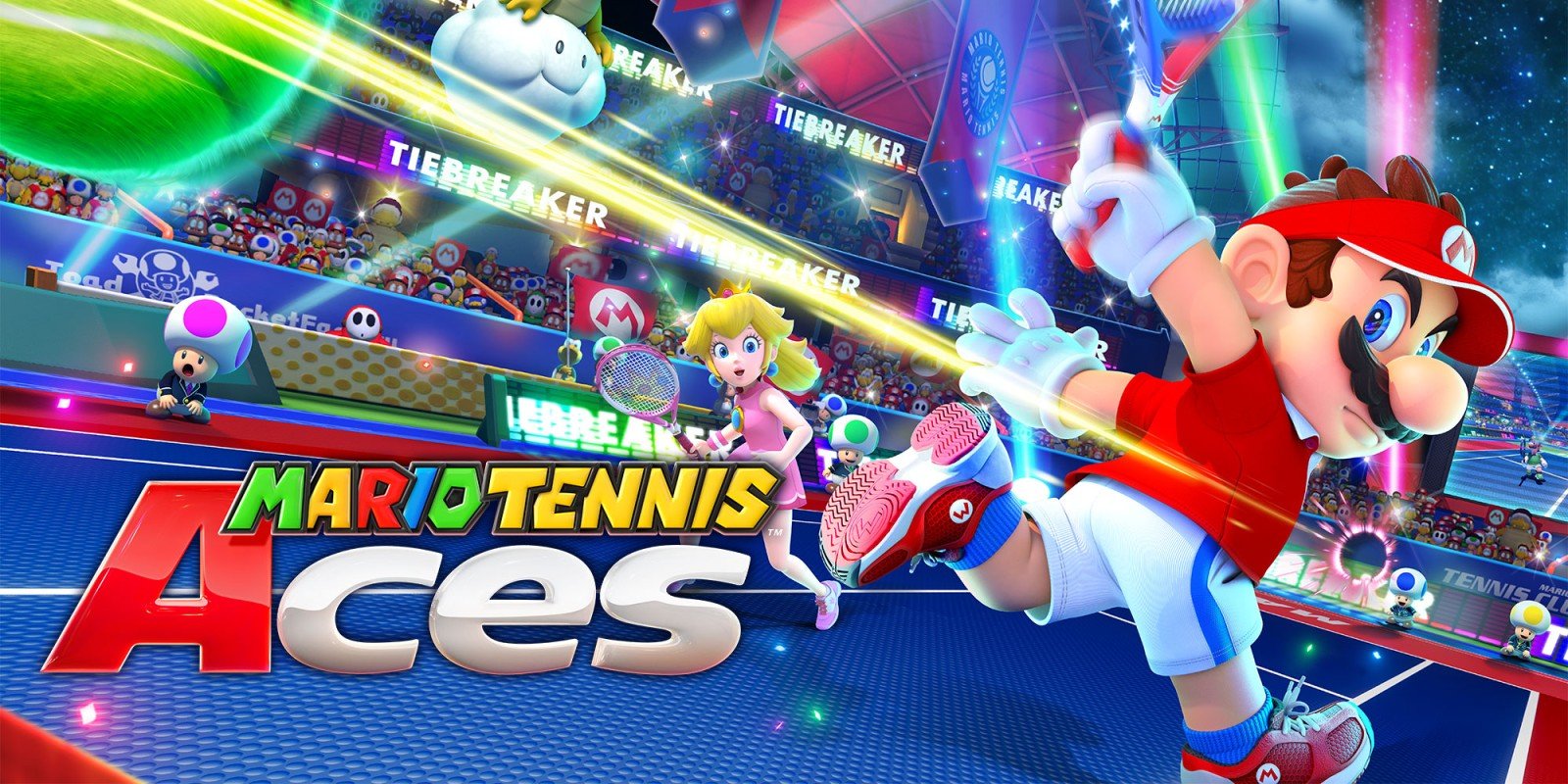
Mario Tennis Aces has a new software update on Nintendo Switch, and it brings the game to Version 3.1.1. The key detail is also the most frustrating one: Nintendo’s note is short and doesn’t spell out specific fixes. Instead, the message is simply that several issues were addressed to improve the gameplay experience. That tells us the intent is stability and polish rather than a flashy new feature, balance overhaul, or mode expansion. If you were hoping the update would suddenly add platform-style extras or a big visual refresh, the official note doesn’t back that up.
Still, small updates can matter a lot in a game like Mario Tennis Aces. Tennis matches are all about rhythm, timing, and the feeling that your inputs land exactly when you mean them to. When something goes off, like a rare freeze, a hiccup in online play, or a weird edge-case bug in a menu, it only takes one bad moment to sour a whole session. Version 3.1.1 reads like Nintendo tightening loose screws, the kind you only notice when they rattle. We’ll walk through what the official wording actually implies, how to confirm you’re on the correct version, what to test first so you can feel the difference (or at least rule out problems), and the most practical fixes if the update refuses to cooperate.
Mario Tennis Aces Version 3.1.1 is available now
Version 3.1.1 is now live for Mario Tennis Aces on Nintendo Switch, with the update released on December 16, 2025. That date matters because it sets expectations: this is a late-cycle patch for a game that’s been around for a while, not a launch-window scramble where features are still being bolted on. In other words, we should think “maintenance” and “smoothness” rather than “new toys.” If you play online, staying current is also the practical move, because version mismatches can block matchmaking or prevent you from playing certain modes with friends. If you have not touched the game in ages, this update can feel like someone slid a fresh coat of wax under your shoes. You might not see it, but you may feel fewer tiny stutters in the flow of play, and that is the whole point.
The official 3.1.1 patch notes in plain English
Nintendo’s note for Version 3.1.1 is brief: “Several issues have been addressed to improve the gameplay experience.” That is it, no bullet list of fixes, no named modes, no “we fixed a crash when doing X,” and no balance changes called out. If you’re used to patch notes that read like a grocery list, this one is more like a sticky note on the fridge that says “tidied up.” The honest translation is that Nintendo is acknowledging problems existed, and the update is meant to reduce friction in play. Because the note does not name specifics, we should avoid claiming any particular mechanic was changed. The safest way to treat 3.1.1 is as a stability and reliability patch, the kind that helps edge cases, rare bugs, or behind-the-scenes behavior that only shows up under certain conditions.
Why Nintendo sometimes keeps notes vague
Vague patch notes can feel like being told “trust us” without seeing the receipt, and yes, that can be annoying. But there are a couple of straightforward reasons a company might do it. Sometimes the fixes are technical and not meaningful to most players, like reducing error rates, tightening network handling, or preventing a rare crash that only occurs with a specific combination of settings. Sometimes the fixes touch security or exploit prevention, and companies prefer not to advertise exactly what was changed. And sometimes it’s simply a small maintenance patch where the costs of writing, translating, and maintaining a detailed list outweigh the benefits. The takeaway for you is simple: we treat the note as a promise of smoother play, then we verify that promise by checking the version, running a few targeted tests, and keeping an eye out for the exact problems you personally ran into before.
Confirming you installed the update correctly
Before we judge anything, we need to make sure the update actually installed. That sounds obvious, but it is surprisingly easy to think you are current when you are not, especially if your console was offline, storage was tight, or automatic updates were disabled. The good news is that confirming the update is quick, and once it is done, you can stop guessing and start playing. Think of it like checking the strings on a tennis racket. You do not want to lose a match because of something you could have verified in ten seconds. We’re aiming for “known good” here: a clear update method, a clear version check, and then a clean baseline for any troubleshooting you do afterward.
Update via the HOME Menu
The most reliable way to update Mario Tennis Aces is from the HOME Menu without launching the game. Highlight the game icon, press the plus button or minus button, and look at the version information shown there. From that same menu, choose the software update option and update via the internet. Doing it this way avoids situations where you launch the game first, get distracted, and assume it updated in the background. It also gives you a clear moment where you can watch the update begin and finish. If you’re about to hop into online matches with friends, this is the move that saves you from the classic “wait, my game says I’m on a different version” moment. Nobody wants to spend their match night staring at a progress bar like it’s a suspense thriller.
Check the version on the title screen
After the update installs, launch the game and look for the version number on the title screen. This is the simple confirmation step that tells you the install really landed. If it shows Ver. 3.1.1, you’re set. If it does not, that is your signal to retry the update process while connected to the internet, or to check whether the console actually finished downloading the update. This check is also useful if you have more than one Switch in the house or you switch between systems, because it helps you confirm every device is aligned. Version alignment matters for playing together, and it matters even more when you’re troubleshooting, because you never want to chase a “bug” that was already fixed but never installed on your console.
What to test after updating
Since the official note does not specify what changed, the best approach is to test the areas that most often reveal stability improvements. We’re not trying to invent changes out of thin air. We’re trying to answer a practical question: does the game feel smoother and more reliable in the places that used to cause headaches? The smartest tests are short and repeatable. Run a couple of online matches, open and close key menus, try the modes you actually play, and watch for anything that feels off. If you had a specific recurring problem before, like a hiccup during matchmaking or a weird pause in a certain screen, recreate that scenario if you can. It’s like checking a squeaky door after tightening the hinge. You do not need a laboratory, you just need the same door and the same hinge.
Online play and matchmaking
Online play is often where small fixes pay off, because it combines network conditions, matchmaking, menus, and real-time gameplay. After installing 3.1.1, try entering online modes, searching for matches, and completing at least one full match. Pay attention to the basics: do menus respond quickly, does matchmaking behave normally, and do you get through the match without interruptions? If you previously saw error messages, disconnects, or odd transitions between screens, those are the exact moments you want to revisit. Even if nothing looks “new,” a smoother session is the win. And if you play competitively, reliability is not just nice to have. It’s the difference between losing because someone outplayed you, and losing because your connection decided to take a coffee break mid-rally.
Local play, LAN, and version matching
Local play can also get tripped up by version mismatches, especially when someone hasn’t updated yet. After 3.1.1, make sure every system involved is on the same version before trying local wireless or LAN play. If you’re meeting friends, a quick “check your title screen version” message saves time and awkwardness. Also test the local flow: selecting characters, entering match settings, and starting the match should feel consistent. If you ever ran into a scenario where one system could not see the other, or where the game refused to start a match, version matching is the first thing to verify. This is the “everyone brings the same rulebook” part of game night. Without it, even perfect controllers and perfect snacks cannot save the evening.
Adventure Mode and Free Play sanity checks
Even if you mostly play versus matches, it’s worth doing a quick sanity check in Adventure Mode and Free Play. Open the modes, load into a match, and play for a few minutes. The goal is not to re-finish the mode, it’s to make sure the game behaves normally across different menus and match setups. Stability fixes often touch transitions, loading, or edge-case UI behavior, so simply moving through the mode selection screens and starting a match can reveal whether anything is still acting strange. If you had a specific save file or mission that behaved oddly, revisit it. If you never had issues there, keep it simple and move on. We’re looking for confidence, not homework, and nobody wants their “quick check” to turn into a surprise weekend project.
Switch 2 expectations, and what Nintendo did not promise
It’s tempting to see a new patch in 2025 and think, “Alright, here come the big platform-style upgrades.” The official note for 3.1.1 does not support that expectation. Nintendo only says issues were addressed to improve the gameplay experience, without mentioning visuals, performance modes, resolution targets, or any feature additions tied to newer hardware. That does not mean you cannot notice differences depending on your setup, but it does mean we should stay grounded: the update is presented as maintenance, not a relaunch. If you were hoping for new options in menus, new modes, or a headline feature, this is not framed that way. Sometimes a patch is just a patch, and that is fine, because a smooth match is still better than a flashy menu that hides a crash behind it.
Performance reality check for older games
Older games can still feel better over time, but that improvement usually comes from two places: the game being patched to run more reliably, or the console environment being stable and up to date. With 3.1.1, the only stated goal is improving the gameplay experience by addressing issues. So if you’re evaluating “does it feel better,” focus on consistency: fewer hiccups, fewer strange pauses, fewer edge-case glitches in menus. Also remember that perceived performance is often about rhythm. A tennis game does not need fireworks to feel great. It needs responsiveness, readable animations, and stable match flow. If the update removes even one annoying snag you used to hit, that can be a bigger quality-of-life gain than any shiny new toggle in the settings screen.
A simple before-and-after test you can do
If you want a clean, practical test, keep it controlled and repeatable. Choose the same stadium, the same characters, and the same match type, then play a short set before and after you install 3.1.1, or compare your memory of a specific recurring issue to how it behaves now. Also watch the non-glamorous stuff: how fast menus react, whether match start transitions feel smooth, and whether online matchmaking behaves reliably. Avoid changing a bunch of settings at once, because then you won’t know what caused what. This is like tuning a racket. You tighten one string, you hit a few balls, and you see how it feels. If you tighten every string at random, you end up with a mystery racket and a confused face.
Common update problems and quick fixes
Most update problems come down to a few predictable culprits: internet connectivity, storage space, or a download that got interrupted. If your update does not start, does not finish, or does not “stick” when you check the version afterward, don’t panic. Start with the simplest fix and work upward. Make sure your console is connected to the internet, then try updating from the HOME Menu again. If you use automatic updates, consider doing a manual update anyway, just to force a clear install cycle. If you’re seeing odd behavior after the update, a full system restart is often the quickest reset for anything stuck in memory. It’s not magical, it’s just practical. Sometimes the console needs a clean breath, like a player stepping back to reset their stance before the next serve.
Storage space and download errors
If storage is tight, updates can fail silently or refuse to begin. Check your available space and free up room if needed. If you have a microSD card, make sure it’s functioning normally and not causing install issues. Also keep in mind that even small updates can require extra temporary space during installation, so “barely enough” space can still be “not enough.” If you run into download errors, try moving closer to your router or switching to a more stable network if possible. Then retry the update from the HOME Menu method so you can see the version information clearly. The goal is to remove variables until the update installs cleanly. Once it does, you can return to tennis and stop doing tech support on your own free time.
Restart, redownload, and last-resort steps
If the update still won’t behave, restart the console and try again. If the version number refuses to change after a successful-looking update, consider checking whether the game itself needs to be redownloaded, especially if your system has had corrupted installs before. For stubborn cases, deleting the software and reinstalling it can help, but be careful to understand what you’re deleting, and make sure your save data is safe before taking drastic steps. After reinstalling, update immediately, then confirm the title screen version. This may sound like overkill, but it’s often faster than spending an hour retrying the same failed download loop. Think of it as resetting the match after a bad call. It’s not fun, but it gets you back to fair play.
A quick look at earlier Mario Tennis Aces updates
Seeing 3.1.1 land in late 2025 feels notable because the game’s larger update cadence was much busier years earlier. Past updates included more detailed changes such as character ability adjustments and added features, which is the kind of thing players immediately notice and talk about. By contrast, 3.1.1 is communicated as a simple “issues addressed” update. That contrast is a useful clue about intent. Earlier versions were about shaping the experience and adding or tuning elements players could point at. This one is about keeping the experience steady. If you’re returning after a long break, it can also be a reminder that Mario Tennis Aces has gone through multiple phases of support, and the current phase is more about maintenance than expansion.
Keeping your matches smooth going forward
Once you’re on 3.1.1, the best way to keep things running well is boring, and that’s a compliment. Keep your console connected to the internet so updates can install, check versions before you plan a local or online session with friends, and restart the system occasionally if you notice odd behavior creeping in. If you run into a repeatable bug after the update, write down what you were doing when it happened: mode, characters, stadium, and whether you were online or local. That kind of detail turns “something felt weird” into something actionable. And if everything feels normal, take the win. Tennis games are like well-fitted shoes. You only notice them when something rubs. If 3.1.1 removes some rubbing, that is a quiet quality upgrade you’ll appreciate every time you play.
Conclusion
Mario Tennis Aces Version 3.1.1 is a small update with a simple message: Nintendo says it addresses several issues to improve the gameplay experience. The note is vague, so the smart move is to treat this as a stability and reliability patch, then verify it with a quick set of checks. Update from the HOME Menu, confirm Ver. 3.1.1 on the title screen, and test the modes you actually play, especially online matchmaking and any local play sessions with friends. If you hoped for big feature additions, the official wording does not point in that direction, but that does not make the update pointless. A smoother match flow, fewer hiccups, and fewer edge-case problems are the kind of changes that keep a game fun long after the hype fades. Install it, confirm it, and get back on court.
FAQs
- When was Mario Tennis Aces Version 3.1.1 released?
- Version 3.1.1 was released in mid-December 2025, with Nintendo listing the update as released on December 16, 2025.
- What are the official patch notes for Version 3.1.1?
- Nintendo’s note says that several issues have been addressed to improve the gameplay experience, without listing specific fixes.
- How do we update Mario Tennis Aces to Version 3.1.1?
- From the HOME Menu, highlight the game icon, press the plus or minus button, then choose Software Update and update via the internet.
- How do we confirm the update installed correctly?
- After installing the update, launch the game and check the title screen version number. It should display Ver. 3.1.1.
- Does Version 3.1.1 add new features or major upgrades?
- The official note does not mention new features, modes, or platform-specific upgrades. It is presented as an issue-fix update focused on improving the gameplay experience.
Sources
- How to Update Mario Tennis Aces, Nintendo Support, December 16, 2025
- How to Update Mario Tennis Aces, Nintendo Support (UK), December 17, 2025
- Mario Tennis Aces updated to Version 3.1.1, My Nintendo News, December 17, 2025
- Mario Tennis Aces updated to Ver. 3.1.1, GoNintendo, December 17, 2025