


Summary:
NintendoReporters brings you an update Nintendo fans have wanted for years: Nintendo Switch Online now offers a setting to disable the border graphics that surround GameCube titles in the Nintendo Classics app. The change arrives with the GameCube app update and the addition of Wave Race: Blue Storm to the library, and it lets players remove the decorative frame that many found distracting on modern displays. Turning the border off does not remove the player profile icon, and the option currently appears limited to the GameCube app only. Below we explain exactly where to find the setting, why this matters for classic preservation and display, what remains on-screen, and how to test the new toggle on your Switch 2 or Switch 2-compatible account.
What changed in the GameCube Nintendo Switch Online update
The latest version of the Nintendo GameCube – Nintendo Classics app introduced a simple but meaningful toggle: an on-off switch for the border graphics that surround GameCube games when played through Nintendo Switch Online. For years those borders have been a fixture designed to fill widescreen panels and mimic hardware-era presentation, but that same overlay often clashes with modern displays and immersion. This update places the control in Settings under Extra Elements Display, giving you a choice between Nintendo’s framed presentation and plain pillar-boxed black bars. For many fans this marks a major quality-of-life improvement – it reduces clutter, helps preserve screen composition, and makes the visuals feel closer to the original. NintendoReporters will keep tracking when the same setting reaches other Classics apps.
How to turn off the border graphics on your system
On a Switch 2 or any console running the updated GameCube app, open the Nintendo Classics: GameCube library, highlight the game you want to play, and open the settings for that title. From there, go to Extra Elements Display, where you will find Border graphics with a toggle to switch it on or off. Switching it off replaces the decorative frame with unobtrusive black pillar boxes, though your Nintendo Switch Online profile icon will still appear in the corner. It’s an easy change that you can flip any time, so try it on a few titles to see how games feel without the overlay. If you prefer variety, keep it on for nostalgia; if you want a cleaner picture, turn it off.
Why players have complained about the borders for so long
The complaint about border graphics is part practical and part aesthetic. Practically, static overlays create uneven brightness on OLED and LED screens, which can be distracting or, in rare cases, raise concerns about burn-in on OLED displays. Aesthetically, many players felt the frames drew attention away from the center action and altered the intended presentation of older games. When retro titles are displayed on modern TVs, the goal for some players is to preserve the original aspect and composition without extra UI flourishes. Other players liked the borders because they hid black bars or added a bit of nostalgia, so reactions are mixed. The toggle finally hands that choice back to players.
Where the option is available and its current limitations
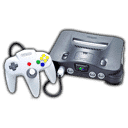
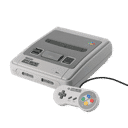
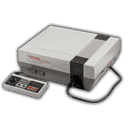
Right now, the Border graphics toggle has appeared in the Nintendo GameCube – Nintendo Classics app. That means if you own a Switch 2 and subscribe to Nintendo Switch Online + Expansion Pack, you can test the feature with the GameCube library. The NES, SNES, Nintendo 64, and other Classics apps still use their existing overlays unless Nintendo packages the same toggle in future updates. Historically Nintendo has rolled out changes app-by-app rather than all at once, so expect the other apps to get similar options when they receive their next rounds of updates or new additions. For context about GameCube coverage and titles you can visit the Nintendo Gamecube hub on NintendoReporters for more background and reactions.
What stays on-screen even after turning the border off
Even with the border graphics disabled, you will still see the Nintendo Switch Online player profile icon in the corner of the screen. That icon persists across the Classics apps and appears to be managed separately from the decorative frame, so disabling the border does not yield a totally untouched image. Other possible on-screen elements like subtle overlays, system UI, or indicators tied to multiplayer status may still appear depending on the game and context. If your priority is a completely pure image, be aware that Nintendo’s toggle improves the view significantly but does not erase every Nintendo-era overlay. Fans have asked for a fully minimal mode and NintendoReporters will note any future changes.
Wave Race: Blue Storm joins the GameCube library and why timing matters
The border toggle arrived alongside the addition of Wave Race: Blue Storm to the GameCube Classics line-up, which some outlets report as the twelfth GameCube title added to the service. Blue Storm is a 2001 launch-era racer and its arrival has reminded fans that Nintendo continues to expand the GamesCube library on Switch 2 via the Expansion Pack. That timing suggests Nintendo bundled the border fix with a content update, which matches how they’ve historically released app improvements. If you were eager to revisit Blue Storm or any early 2000s GameCube game, now is a good chance to compare the experience with and without the border and to judge how the games hold up on modern hardware.
What this means for Switch 2 owners and classic preservation
For Switch 2 owners and anyone serious about preserving the original look of retro games, the toggle is a positive move. It acknowledges that presentation preferences vary and gives players agency over how they want their classics displayed. This matters not just for nostalgia but for accurate visual preservation; removing extraneous overlays helps players, streamers, and preservationists judge color, framing, and UI as originally intended. Of course, full preservation also depends on accurate emulation and access to original resolutions, but this toggle is a clear step toward letting users choose a viewing style that fits their setup. If you want to stay informed about future updates to the Nintendo Classics apps, check the Nintendo Switch 2 section on NintendoReporters for ongoing coverage and analysis.
How NintendoReporters suggests you test the option
Try a simple experiment: pick a familiar GameCube game and play ten to fifteen minutes with borders on, then switch them off and play another session. Pay attention to immersion, perceived brightness, and any distractions from the profile icon. If you stream or record, watch how the border looks in a captured video—the black pillar boxes can present better on widescreen recordings, and some streamers prefer that cleaner footage. If you own an OLED display, toggle the setting to reduce static bright areas during long sessions. Share your findings in the community; other fans’ experiences will help inform whether Nintendo should expand the toggle to more apps or add a full minimalist mode.
Conclusion
Turning off the border graphics is a small change with a surprisingly big impact for many Nintendo fans. It gives players more control over how retro titles appear on modern displays while leaving a few system elements intact. NintendoReporters welcomes the toggle as a fan-focused update and will watch for the setting to reach other Nintendo Classics apps. If you haven’t tried it yet, flip the Extra Elements Display setting and decide whether that cleaner presentation makes your GameCube favorites feel closer to how you remember them.
FAQs
- How do I find the Border graphics setting?
- Open the GameCube app, select a game, go to Settings, then Extra Elements Display. The Border graphics toggle is there to switch on or off.
- Does turning the border off remove the profile icon?
- No. The player profile icon remains visible even when border graphics are disabled; Nintendo has kept that element independent of the frame toggle.
- Is the setting available for NES, SNES, or N64 apps?
- Not yet. The toggle currently appears in the GameCube app only, though Nintendo may add it to other Classics apps in future updates.
- Will disabling the border affect game performance?
- No. Turning off the border is a display preference and does not change emulation or performance; it only alters the overlay that surrounds the game viewport.
- Where can I read more about GameCube games on Switch 2?
- Visit NintendoReporters’ GameCube hub for news, reactions, and guides, and check our Nintendo Switch 2 section for platform-specific updates and analysis.
Sources
- PSA: You Can Now Turn Off The Border Graphic In Switch Online’s GameCube App, Nintendo Life, November 24, 2026
- Wave Race Blue Storm is the 12th GameCube game to be added to Switch Online’s library, VGC, November 24, 2026
- Nintendo Switch Online players can finally turn off border graphics for GameCube games, Nintendo Wire, November 24, 2026
- Nintendo Switch Online finally adds new option fans have been asking for after nearly a decade, Nintendo Everything, November 23, 2026